
Authentication Overview
The KIMP360 API uses API keys to authenticate requests. All API requests must include a valid API key. Requests made without a valid key, or with an improperly formatted key, will result in an authentication error.Obtaining Your API Key
To start making API calls, you first need to obtain an API key:1
Access Your KIMP360 Dashboard
Sign in to your KIMP360 account. From the sidebar, click My Account > Settings, then open the Zapier Integration tab. 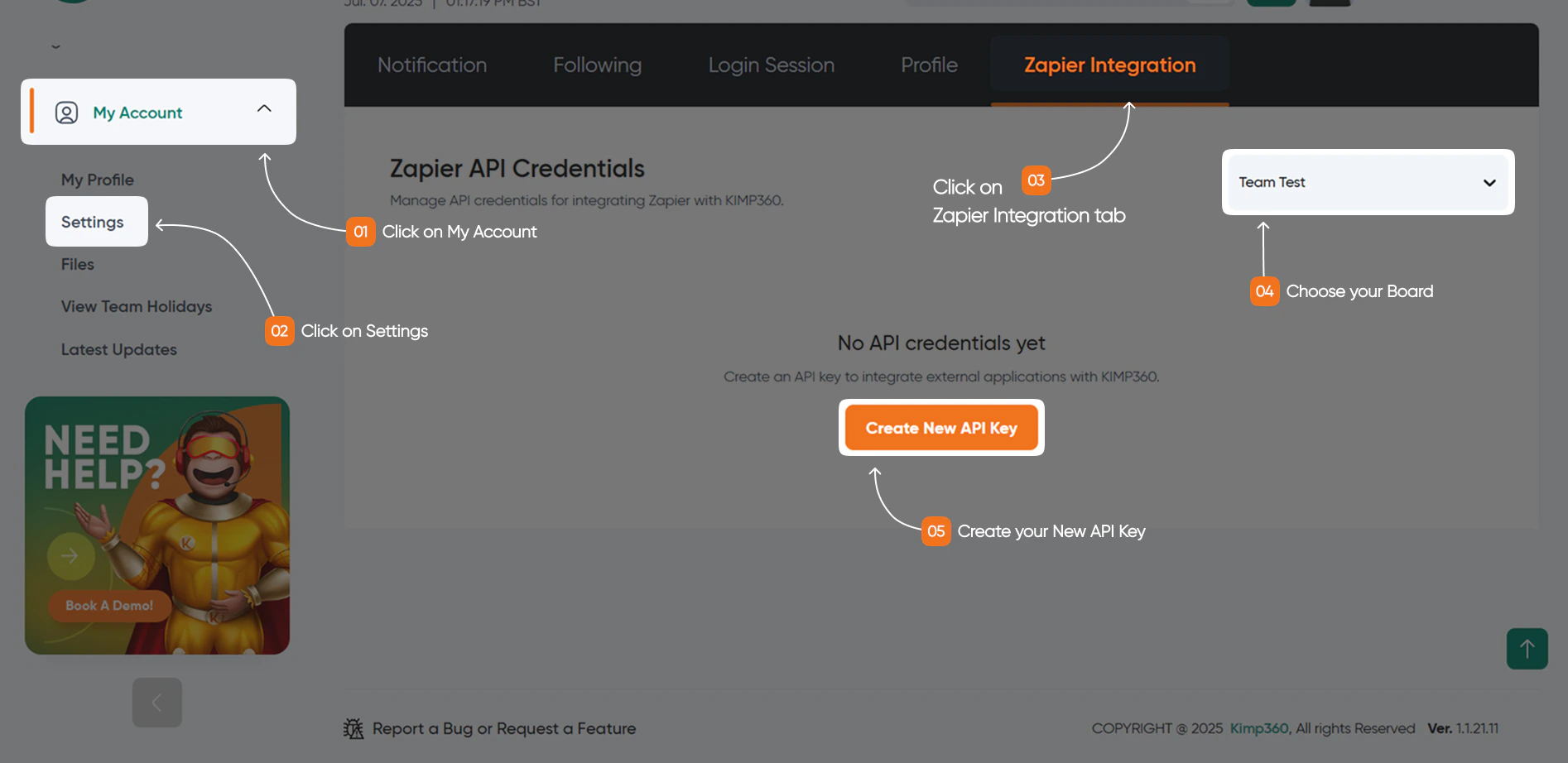
2
Generate or Find Your API Key
In the Zapier Integration tab, you can generate a new API key or view your existing key. If you generate a new key, you may be asked to name it for easy identification (for example, “KIMP API Key”).
3
Copy and Store Your Key Securely
Once your API key is displayed, copy it and store it in a secure location, such as a password manager or a secure environment variable for your application.
Important: Secure Your Key!
Your API key grants access to your KIMP360 data and resources. Never share it publicly, embed it directly in client-side code (such as JavaScript in a browser), or commit it to version control (for example, Git).
Your API key grants access to your KIMP360 data and resources. Never share it publicly, embed it directly in client-side code (such as JavaScript in a browser), or commit it to version control (for example, Git).
Making Authenticated Requests
To authenticate an API request, you must include your API key in the x-api-key HTTP header. Example Request Header:YOUR_API_KEY with the actual API key you obtained.
Full Example using cURL:
🛡️ Security Best Practices for API Keys
Proper management of your API keys is critical for the security of your integration and data.Keep Keys Confidential
Treat your API keys like passwords. Do not embed them in publicly accessible code, such as client-side JavaScript or mobile apps that can be decompiled.
Use Environment Variables
Store API keys in environment variables on your server. This prevents them from being hardcoded into your application source code.
Rotate Keys Regularly
Periodically regenerate your API keys, especially if you suspect a key might have been compromised or if an employee with access leaves your organization.
Secure Your Backend
If your application involves a backend server making API calls on behalf of users, ensure that server is well-secured to protect the API keys stored there.
Troubleshooting Authentication Errors
If you encounter authentication problems, you’ll typically receive a401 Unauthorized or 403 Forbidden HTTP status code.
Error: 403 Forbidden
Error: 403 Forbidden
Meaning: You are authenticated, but you do not have permission to access the requested resource or perform the requested action. Possible Causes: * The API key used has insufficient permissions for the target resource or action (if granular permissions are supported). * You are trying to access a resource that does not belong to your account or project. Troubleshooting Steps: 1. Check the permissions associated with the API key in your KIMP360 dashboard (if applicable). 2. Ensure you are targeting the correct resource ID and that it belongs to the account associated with your API key.