
How to set up your Slack app?
1
Log in to Your KIMP360 Dashboard
Sign in to your KIMP360 account. From the sidebar, click My Account > Settings, then open the Slack Integration tab and click the Add to Slack button. 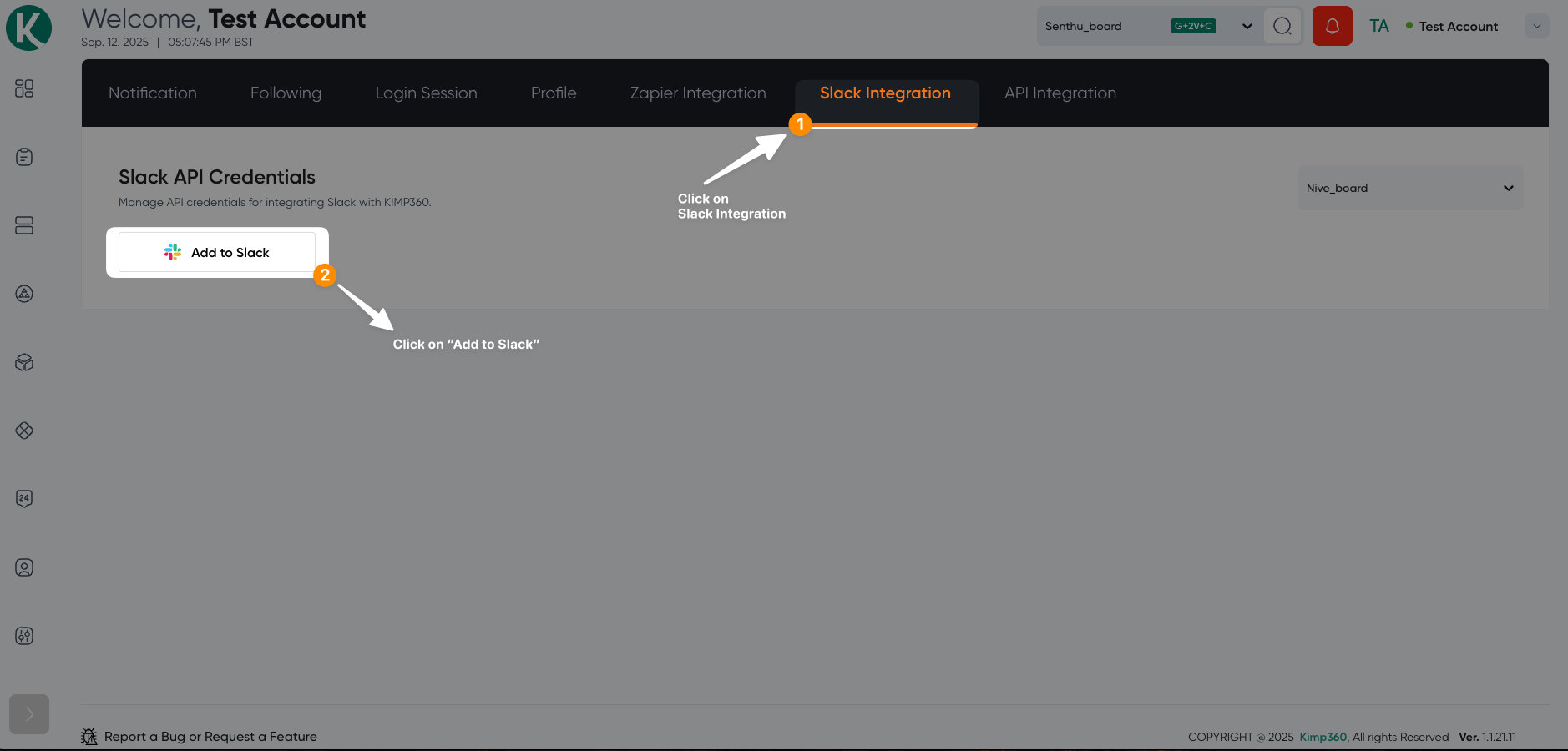
2
Step 2
You will be redirected to a page with another Add to Slack button. Click on that.
3
Choose slack workspace and chanel
Choose the workspace where you want to install the application and the channel where you want to receive notifications. 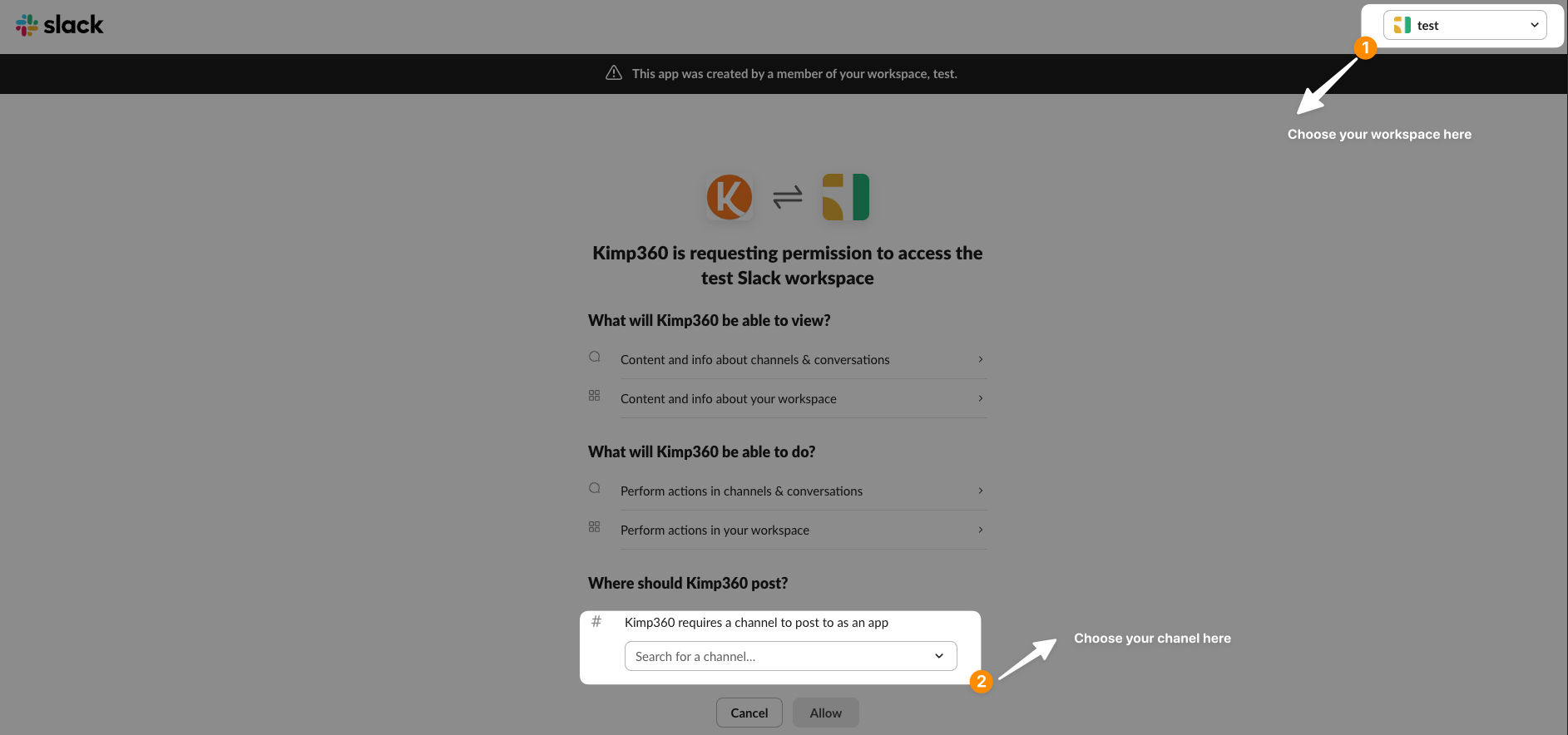
IMPORTANT: One workspace can only have one board attached to it. If a workspace already has a board attached to it. You will see an error.