Add the KIMP360 connector to Claude, ChatGPT, Cursor, VS Code or Claude Code.
Open Settings → AI Apps in the KIMP360 dashboard and click Connect An App. It walks you through the same steps below and confirms the moment the connection lands. You can also follow the steps manually here.
Open AI Apps in your dashboard
Starts the guided setup, the fastest way through the steps below.
Every path ends the same way: KIMP360 asks you to sign in, then shows a consent screen where you choose what the app can see (see Permissions & Security).
Claude
ChatGPT
Cursor, VS Code, Claude Code & others
1
Open Claude
In Claude, go to Customize → Connectors, click + Add, then Add custom connector.
the “Add custom connector” dialog with name + URL filled in (illustrative)
3
Sign in
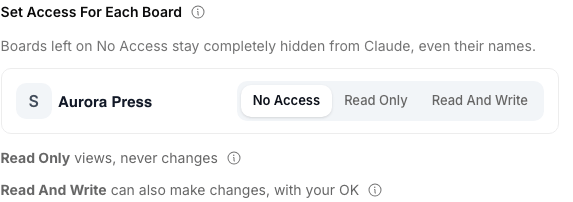
Sign in to KIMP360 and choose what Claude can do on each board.
the KIMP360 sign-in prompt and the per-board consent screen
Available on Free, Pro, Max, Team & Enterprise plans (connector limits may apply). In each new chat, turn KIMP360 on under + → Connectors.
1
Open Plugins
In ChatGPT, go to Plugins in the sidebar, then Add → Add custom MCP server.
ChatGPT's Plugins page, Add menu open with Add custom MCP server highlighted (illustrative)
2
Add KIMP360
Name it KIMP360, paste this link as the server URL, and set Authentication to OAuth:
https://api.kimp360.com/mcp
the custom MCP server dialog with name, URL and OAuth authentication filled in (illustrative)
3
Sign in
Sign in to KIMP360 and choose what ChatGPT can do on each board.
same consent screen as the Claude tab, ChatGPT framing optional
Available on Business, Enterprise & Edu plans. In each new chat, select Plugins → Add → Add custom MCP server.
1
Install
Use your app’s one-click MCP install, or add a custom MCP connector by hand. For Claude Code, run:
claude mcp add --transport http kimp360 https://api.kimp360.com/mcp
the one-click install buttons row (Cursor / VS Code), or a terminal running the Claude Code command (illustrative)
2
Added it by hand?
Paste this link when prompted for the server URL:
https://api.kimp360.com/mcp
3
Sign in
Sign in to KIMP360 and choose what the app can do on each board.
same consent screen as the other tabs
After you connect
Manage every connected app from Settings → AI Apps: see when each one was last used, change which boards it can reach, or revoke it entirely. See Permissions & Security for details.
Was this page helpful?
⌘I
{"docsConfig":{"theme":"maple","$schema":"https://mintlify.com/docs.json","name":"KIMP360 API","colors":{"primary":"#f1731e","light":"#f1731e","dark":"#f1731e"},"logo":{"light":"https://mintcdn.com/kimp360/Bi2TIrw2nbBrItk8/images/logo-light.svg?fit=max\u0026auto=format\u0026n=Bi2TIrw2nbBrItk8\u0026q=85\u0026s=f89d1c3aeebd9226fdf0228b5da88df4","dark":"https://mintcdn.com/kimp360/Bi2TIrw2nbBrItk8/images/logo-light.svg?fit=max\u0026auto=format\u0026n=Bi2TIrw2nbBrItk8\u0026q=85\u0026s=f89d1c3aeebd9226fdf0228b5da88df4"},"favicon":"https://mintcdn.com/kimp360/Bi2TIrw2nbBrItk8/images/favicons/icon-512-512.png?fit=max\u0026auto=format\u0026n=Bi2TIrw2nbBrItk8\u0026q=85\u0026s=ffe6c8cf9b6d369435b393b734a9f7af","api":{"playground":{"display":"simple"},"examples":{"defaults":"required","languages":["curl","python","javascript"]}},"appearance":{"default":"dark"},"background":{},"navbar":{"primary":{"type":"button","label":"API Dashboard","href":"https://kimp360.com/dashboard/settings/api_integration"}},"fonts":{"family":"Inter"},"icons":{"library":"lucide"},"styling":{"eyebrows":"breadcrumbs","codeblocks":"system","latex":false},"navigation":{"global":{"anchors":[{"anchor":"KIMP360 Dashboard","icon":"globe","href":"https://kimp360.com/dashboard"},{"anchor":"API Keys","icon":"key","href":"https://kimp360.com/dashboard/settings/api_integration"},{"anchor":"Support","icon":"headset","href":"mailto:support@kimp360.com"}]},"pages":[]}},"deployment":{"deploymentMetadataValue":{"subdomain":"kimp360","hasAudioNarration":false,"actualSubdomain":"kimp360","customDomains":["docs.kimp360.com"],"gitSource":{"type":"github","owner":"kimp-io","repo":"kimp360-turbo","deployBranch":"main","contentDirectory":"apps/client-api/docs","isPrivate":true,"mountPath":"","label":"","_id":"6af45c3c9d25308df353cb29"},"feedback":{"thumbs":true},"entitlements":{},"buildId":"6b03ed19d48387065b232ec6","clientVersion":"0.0.4286","searchFilterCounts":[{"language":"default","tag":"API Reference","count":12},{"language":"default","tag":"Make Integration Guide","count":10},{"language":"default","tag":"Resources","count":9},{"language":"default","tag":"Zapier Integration Guide","count":9},{"language":"default","tag":"Slack Integration Guide","count":8},{"language":"default","tag":"MCP Integration Guide","count":6},{"language":"default","tag":"Getting Started","count":4},{"language":"default","tag":"Essentials","count":3},{"language":"default","tag":"Wrike Integration Guide","count":3},{"language":"default","tag":"What You Can Do","count":2}]},"assistantConfig":{},"basePath":"","hasChatPermissions":false,"hasWebMcpPermissions":false,"toggles":[{"name":"kill-isr","enabled":true,"variant":{"name":"disabled","enabled":false,"feature_enabled":true},"impressionData":false},{"name":"custom-rbac-roles","enabled":true,"variant":{"name":"disabled","enabled":false,"feature_enabled":true},"impressionData":false},{"name":"agent-mintlify-slack","enabled":true,"variant":{"name":"disabled","enabled":false,"feature_enabled":true},"impressionData":false},{"name":"agent-integrations-settings","enabled":true,"variant":{"name":"disabled","enabled":false,"feature_enabled":true},"impressionData":false},{"name":"rbac-expansion","enabled":true,"variant":{"name":"disabled","enabled":false,"feature_enabled":true},"impressionData":false},{"name":"automations-pr-grouping","enabled":true,"variant":{"name":"disabled","enabled":false,"feature_enabled":true},"impressionData":false},{"name":"custom-prefix","enabled":true,"variant":{"name":"disabled","enabled":false,"feature_enabled":true},"impressionData":false},{"name":"analytics-v7","enabled":true,"variant":{"name":"disabled","enabled":false,"feature_enabled":true},"impressionData":false},{"name":"user-flows-analytics","enabled":true,"variant":{"name":"disabled","enabled":false,"feature_enabled":true},"impressionData":false},{"name":"no-publish-flow","enabled":true,"variant":{"name":"disabled","enabled":false,"feature_enabled":true},"impressionData":false},{"name":"workos-onboarding","enabled":true,"variant":{"name":"disabled","enabled":false,"feature_enabled":true},"impressionData":false},{"name":"snapshot-serving-live","enabled":true,"variant":{"name":"disabled","enabled":false,"feature_enabled":true},"impressionData":false},{"name":"stripTemperatureMiddleware","enabled":true,"variant":{"name":"disabled","enabled":false,"feature_enabled":true},"impressionData":false},{"name":"support-platform-pylon-zendesk","enabled":true,"variant":{"name":"disabled","enabled":false,"feature_enabled":true},"impressionData":false},{"name":"snapshot-serving","enabled":true,"variant":{"name":"disabled","enabled":false,"feature_enabled":true},"impressionData":false},{"name":"instant-rollback","enabled":true,"variant":{"name":"disabled","enabled":false,"feature_enabled":true},"impressionData":false},{"name":"granular-notifications-server","enabled":true,"variant":{"name":"disabled","enabled":false,"feature_enabled":true},"impressionData":false},{"name":"granular-notifications","enabled":true,"variant":{"name":"disabled","enabled":false,"feature_enabled":true},"impressionData":false},{"name":"automations-fable","enabled":true,"variant":{"name":"disabled","enabled":false,"feature_enabled":true},"impressionData":false},{"name":"fixed-ai-action-pricing","enabled":true,"variant":{"name":"disabled","enabled":false,"feature_enabled":true},"impressionData":false},{"name":"site-roles","enabled":true,"variant":{"name":"disabled","enabled":false,"feature_enabled":true},"impressionData":false},{"name":"automation-resolve-merge-conflict","enabled":true,"variant":{"name":"disabled","enabled":false,"feature_enabled":true},"impressionData":false},{"name":"scoped-publishing","enabled":true,"variant":{"name":"disabled","enabled":false,"feature_enabled":true},"impressionData":false},{"name":"mintql","enabled":true,"variant":{"name":"disabled","enabled":false,"feature_enabled":true},"impressionData":false},{"name":"page-level-analytics","enabled":true,"variant":{"name":"disabled","enabled":false,"feature_enabled":true},"impressionData":false},{"name":"editor-version-history-v2","enabled":true,"variant":{"name":"disabled","enabled":false,"feature_enabled":true},"impressionData":false},{"name":"billing-page-v2","enabled":true,"variant":{"name":"disabled","enabled":false,"feature_enabled":true},"impressionData":false},{"name":"full-page-search","enabled":true,"variant":{"name":"disabled","enabled":false,"feature_enabled":true},"impressionData":false},{"name":"workspace-projects","enabled":true,"variant":{"name":"disabled","enabled":false,"feature_enabled":true},"impressionData":false},{"name":"assistant-v5","enabled":true,"variant":{"name":"disabled","enabled":false,"feature_enabled":true},"impressionData":false},{"name":"fork-pr-previews","enabled":true,"variant":{"name":"disabled","enabled":false,"feature_enabled":true},"impressionData":false},{"name":"revalidation-jwt","enabled":true,"variant":{"name":"disabled","enabled":false,"feature_enabled":true},"impressionData":false},{"name":"workos-sso-scim","enabled":true,"variant":{"name":"disabled","enabled":false,"feature_enabled":true},"impressionData":false},{"name":"hobby-abuse-scan","enabled":true,"variant":{"name":"disabled","enabled":false,"feature_enabled":true},"impressionData":false},{"name":"dashboard-inbox","enabled":true,"variant":{"name":"disabled","enabled":false,"feature_enabled":true},"impressionData":false},{"name":"workos-signup","enabled":true,"variant":{"name":"disabled","enabled":false,"feature_enabled":true},"impressionData":false},{"name":"turbopuffer-dual-write","enabled":true,"variant":{"name":"disabled","enabled":false,"feature_enabled":true},"impressionData":false},{"name":"workos-enabled","enabled":true,"variant":{"name":"disabled","enabled":false,"feature_enabled":true},"impressionData":false},{"name":"approve-review-flow","enabled":true,"variant":{"name":"disabled","enabled":false,"feature_enabled":true},"impressionData":false},{"name":"editor-metadata","enabled":true,"variant":{"name":"disabled","enabled":false,"feature_enabled":true},"impressionData":false},{"name":"sso-setup-deadline-banner","enabled":true,"variant":{"name":"disabled","enabled":false,"feature_enabled":true},"impressionData":false},{"name":"turbopuffer-serve","enabled":true,"variant":{"name":"disabled","enabled":false,"feature_enabled":true},"impressionData":false},{"name":"live-agents","enabled":true,"variant":{"name":"disabled","enabled":false,"feature_enabled":true},"impressionData":false},{"name":"starter-pricing","enabled":true,"variant":{"name":"treatment","enabled":true,"payload":{"type":"string","value":"treatment"},"feature_enabled":true},"impressionData":false},{"name":"llms-txt-v2","enabled":true,"variant":{"name":"disabled","enabled":false,"feature_enabled":true},"impressionData":false},{"name":"wildcard-email-auth","enabled":true,"variant":{"name":"disabled","enabled":false,"feature_enabled":true},"impressionData":false}],"googleFontsInlined":false},"customCss":[{"filePath":"custom.css","content":":root{--kimp-primary: #f1731e;--kimp-primary-soft: rgba(241, 115, 30, 0.12);--kimp-primary-soft-strong: rgba(241, 115, 30, 0.3);--kimp-secondary: #00806c;--kimp-secondary-soft: rgba(0, 128, 108, 0.14);--kimp-glass-light: rgba(255, 255, 255, 0.55);--kimp-glass-dark: rgba(24, 24, 27, 0.55);--kimp-sidebar-width: 19rem}::selection{background:var(--kimp-secondary);color:#fff}::-moz-selection{background:var(--kimp-secondary);color:#fff}#background-color{background-color:#f4f4f4;background-image:radial-gradient(60% 55% at 50% -10%, rgba(241, 115, 30, 0.18), transparent 70%)}.dark #background-color{background-color:#101012;background-image:radial-gradient(60% 55% at 50% -10%, rgba(241, 115, 30, 0.26), transparent 70%)}@media (min-width: 1024px){#sidebar{min-width:var(--kimp-sidebar-width)}#content-container{margin-left:var(--kimp-sidebar-width)}#navbar-transition-maple{left:var(--kimp-sidebar-width);width:calc(100% - var(--kimp-sidebar-width))}#sidebar>ul{width:calc(var(--kimp-sidebar-width) - 1px)}#navbar>div.max-w-8xl{margin-left:var(--kimp-sidebar-width);margin-right:0;max-width:calc(100% - var(--kimp-sidebar-width))}#sidebar button[aria-label=\"Toggle dark mode\"]{display:none}}#navbar-transition-maple button[data-kimp-toggle-clone]{margin-left:auto;margin-right:1.5rem;align-self:center;transform:scale(1.3);background:rgba(255, 255, 255, 0.95)!important;border-color:rgba(0, 0, 0, 0.1)!important;box-shadow:0 2px 8px rgba(0, 0, 0, 0.15)}.dark #navbar-transition-maple button[data-kimp-toggle-clone]{background:rgba(39, 39, 42, 0.95)!important;border-color:rgba(255, 255, 255, 0.14)!important;box-shadow:0 2px 10px rgba(0, 0, 0, 0.4)}@media (min-width: 1024px) and (max-width: 1279.98px){#content-area{max-width:min(46rem, calc(100vw - var(--kimp-sidebar-width) - 8rem))}}@media (min-width: 1280px) and (max-width: 1535.98px){#content-area{max-width:min(50rem, calc(100vw - var(--kimp-sidebar-width) - 19rem - 8rem))}}@media (min-width: 1536px){#content-area{max-width:min(64rem, calc(100vw - var(--kimp-sidebar-width) - 19rem - 8rem))}}.card{position:relative;isolation:isolate;background:var(--kimp-glass-light);backdrop-filter:blur(10px);-webkit-backdrop-filter:blur(10px);transition:transform 200ms cubic-bezier(0.16, 1, 0.3, 1),\n box-shadow 200ms cubic-bezier(0.16, 1, 0.3, 1),\n border-color 200ms cubic-bezier(0.16, 1, 0.3, 1)}.dark .card{background:var(--kimp-glass-dark)}.card::before{content:'';position:absolute;inset:0;z-index:-1;border-radius:inherit;opacity:0;background:radial-gradient(\n 360px circle at var(--mx, 50%) var(--my, 0%),\n color-mix(in oklab, var(--kimp-secondary) 12%, transparent),\n transparent 70%\n );transition:opacity 260ms cubic-bezier(0.16, 1, 0.3, 1)}.card:hover{transform:translateY(-2px);box-shadow:0 12px 28px rgba(15, 23, 42, 0.12);border-color:var(--kimp-primary-soft-strong)}.card:hover::before{opacity:1}.dark .card:hover{box-shadow:0 16px 36px rgba(0, 0, 0, 0.45)}#navigation-items a{border-radius:0.5rem;transition:transform 200ms cubic-bezier(0.16, 1, 0.3, 1),\n background-color 200ms cubic-bezier(0.16, 1, 0.3, 1),\n backdrop-filter 200ms cubic-bezier(0.16, 1, 0.3, 1)}#navigation-items a:hover{transform:translateX(2px);background:var(--kimp-primary-soft);backdrop-filter:blur(6px);-webkit-backdrop-filter:blur(6px)}[data-component-part=\"code-block-root\"],.code-group{border-radius:0.75rem;transition:box-shadow 200ms cubic-bezier(0.16, 1, 0.3, 1)}[data-component-part=\"code-block-root\"]:hover,.code-group:hover{box-shadow:0 8px 24px rgba(15, 23, 42, 0.1)}.dark [data-component-part=\"code-block-root\"]:hover,.dark .code-group:hover{box-shadow:0 8px 24px rgba(0, 0, 0, 0.4)}[data-testid=\"copy-code-button\"]{transition:transform 150ms cubic-bezier(0.16, 1, 0.3, 1)}[data-testid=\"copy-code-button\"]:hover{transform:scale(1.08)}.callout{backdrop-filter:blur(8px);-webkit-backdrop-filter:blur(8px);transition:box-shadow 200ms cubic-bezier(0.16, 1, 0.3, 1)}.callout:hover{box-shadow:0 6px 18px rgba(15, 23, 42, 0.08)}.dark .callout:hover{box-shadow:0 6px 18px rgba(0, 0, 0, 0.35)}.nav-tabs{min-width:0;max-width:calc(100% - 6rem);gap:0;overflow-x:auto;overflow-y:hidden;scrollbar-width:none}.nav-tabs::-webkit-scrollbar{height:6px}.nav-tabs::-webkit-scrollbar-thumb{background:var(--kimp-primary);border-radius:9999px}.nav-tabs-item{flex:0 0 auto;gap:0;padding:0 0.75rem;border-radius:0.4rem;white-space:nowrap;transition:color 200ms cubic-bezier(0.16, 1, 0.3, 1),\n background-color 200ms cubic-bezier(0.16, 1, 0.3, 1)}.nav-tabs-item:hover{background:var(--kimp-primary-soft)}.nav-tabs-item[href=\"/ai-apps/overview\"]::after,.nav-tabs-item[href=\"/make/auth\"]::after,.nav-tabs-item[href=\"/wrike/connect-wrike\"]::after{content:'✨ New';display:inline-flex;align-items:center;white-space:nowrap;margin-left:0.4rem;padding:0.05rem 0.5rem;border-radius:9999px;font-size:0.65rem;font-weight:700;letter-spacing:0.01em;color:var(--kimp-primary);background:var(--kimp-primary-soft)}#table-of-contents-content.toc .toc-item a{border-radius:0.4rem;transition:transform 200ms cubic-bezier(0.16, 1, 0.3, 1),\n background-color 200ms cubic-bezier(0.16, 1, 0.3, 1)}#table-of-contents-content.toc .toc-item a:hover{transform:translateX(2px);background:var(--kimp-primary-soft)}#content-area{animation:kimpContentIn 420ms cubic-bezier(0.16, 1, 0.3, 1) backwards}@keyframes kimpContentIn{from{opacity:0;transform:translateY(8px)}to{opacity:1;transform:translateY(0)}}@media (prefers-reduced-motion: reduce){.card,.card::before,#navigation-items a,[data-component-part=\"code-block-root\"],.code-group,.callout,[data-testid=\"copy-code-button\"],.nav-tabs-item,#table-of-contents-content.toc .toc-item a,#content-area{transition:none;animation:none}}body{overflow-x:hidden;text-rendering:geometricPrecision;-webkit-font-smoothing:antialiased}code,pre{text-rendering:optimizeLegibility}"},{"filePath":"style.css","content":"#api-playground-2-operation-page{gap:2}body{width:100vw;overflow-x:hidden}#navbar{width:100vw!important}#navbar-transition{width:100vw!important}#sidebar{width:14rem}#body-content{width:80vw}#content-container{width:86vw}"}]}
{"page":{"pagePath":"ai-apps/connect","slug":"/ai-apps/connect","pageMetadata":{"title":"Connect Your AI App","description":"Add the KIMP360 connector to Claude, ChatGPT, Cursor, VS Code or Claude Code.","icon":"link","href":"/ai-apps/connect"},"description":{"compiledSource":"\"use strict\";\nconst {jsx: _jsx} = arguments[0];\nconst {useMDXComponents: _provideComponents} = arguments[0];\nfunction _createMdxContent(props) {\n const _components = {\n p: \"p\",\n ..._provideComponents(),\n ...props.components\n };\n return _jsx(_components.p, {\n children: \"Add the KIMP360 connector to Claude, ChatGPT, Cursor, VS Code or Claude Code.\"\n });\n}\nfunction MDXContent(props = {}) {\n const {wrapper: MDXLayout} = {\n ..._provideComponents(),\n ...props.components\n };\n return MDXLayout ? _jsx(MDXLayout, {\n ...props,\n children: _jsx(_createMdxContent, {\n ...props\n })\n }) : _createMdxContent(props);\n}\nreturn {\n default: MDXContent\n};\n","frontmatter":{},"scope":{}},"pageType":"default","mdx":{"mdxSource":{"compiledSource":"\"use strict\";const{Fragment:_Fragment,jsx:_jsx,jsxs:_jsxs}=arguments[0];const{useMDXComponents:_provideComponents}=arguments[0];function _createMdxContent(props){const _components={a:`a`,code:`code`,p:`p`,pre:`pre`,span:`span`,strong:`strong`,..._provideComponents(),...props.components},{Card,CodeBlock,Frame,Heading,OptimizedImage,Step,Steps,Tab,Tabs,Tip}=_components;if(!Card)_missingMdxReference(`Card`,true);if(!CodeBlock)_missingMdxReference(`CodeBlock`,true);if(!Frame)_missingMdxReference(`Frame`,true);if(!Heading)_missingMdxReference(`Heading`,true);if(!OptimizedImage)_missingMdxReference(`OptimizedImage`,true);if(!Step)_missingMdxReference(`Step`,true);if(!Steps)_missingMdxReference(`Steps`,true);if(!Tab)_missingMdxReference(`Tab`,true);if(!Tabs)_missingMdxReference(`Tabs`,true);if(!Tip)_missingMdxReference(`Tip`,true);return _jsxs(_Fragment,{children:[_jsxs(_components.p,{children:[`Open `,_jsx(_components.strong,{children:`Settings → AI Apps`}),` in the KIMP360 dashboard and click `,_jsx(_components.strong,{children:`Connect An App`}),`. It walks you through the same steps below and confirms the moment the connection lands. You can also follow the steps manually here.`]}),`\n`,_jsx(Card,{title:`Open AI Apps in your dashboard`,icon:`link`,href:`https://kimp360.com/dashboard/settings/ai_apps`,cta:`Go to AI Apps`,children:_jsx(_components.p,{children:`Starts the guided setup, the fastest way through the steps below.`})}),`\n`,_jsxs(_components.p,{children:[`Every path ends the same way: KIMP360 asks you to sign in, then shows a consent screen where you choose what the app can see (see `,_jsx(_components.a,{href:`/ai-apps/permissions`,children:`Permissions \u0026 Security`}),`).`]}),`\n`,_jsxs(Tabs,{children:[_jsxs(Tab,{title:`Claude`,id:`claude`,children:[_jsxs(Steps,{children:[_jsxs(Step,{title:`Open Claude`,children:[_jsxs(_components.p,{children:[`In Claude, go to `,_jsx(_components.strong,{children:`Customize → Connectors`}),`, click `,_jsx(_components.strong,{children:`+ Add`}),`, then `,_jsx(_components.strong,{children:`Add custom connector`}),`.`]}),_jsx(Frame,{caption:`Claude's Customize → Connectors screen, + Add button highlighted (illustrative)`,children:_jsx(OptimizedImage,{src:`https://mintcdn.com/kimp360/-UvmTCiuv_Rv1wkf/images/mcp-mockup-claude-connectors.png?fit=max\u0026auto=format\u0026n=-UvmTCiuv_Rv1wkf\u0026q=85\u0026s=88d6bb0a286073e1c69b7a9267d06da8`,alt:`Illustrative example of a connectors settings screen`,\"data-og-width\":`652`,width:`652`,\"data-og-height\":`382`,height:`382`,\"data-path\":`images/mcp-mockup-claude-connectors.png`,\"data-optimize\":`true`,\"data-opv\":`3`,srcset:`https://mintcdn.com/kimp360/-UvmTCiuv_Rv1wkf/images/mcp-mockup-claude-connectors.png?w=280\u0026fit=max\u0026auto=format\u0026n=-UvmTCiuv_Rv1wkf\u0026q=85\u0026s=c0c4ec354fe78f6ab23526f691f431b9 280w, https://mintcdn.com/kimp360/-UvmTCiuv_Rv1wkf/images/mcp-mockup-claude-connectors.png?w=560\u0026fit=max\u0026auto=format\u0026n=-UvmTCiuv_Rv1wkf\u0026q=85\u0026s=ad07b6bdbe1e372976be7f04d42992e9 560w, https://mintcdn.com/kimp360/-UvmTCiuv_Rv1wkf/images/mcp-mockup-claude-connectors.png?w=840\u0026fit=max\u0026auto=format\u0026n=-UvmTCiuv_Rv1wkf\u0026q=85\u0026s=819520abba263097a02a0a8646d63558 840w, https://mintcdn.com/kimp360/-UvmTCiuv_Rv1wkf/images/mcp-mockup-claude-connectors.png?w=1100\u0026fit=max\u0026auto=format\u0026n=-UvmTCiuv_Rv1wkf\u0026q=85\u0026s=393de1d17ce153566ac52c64344aab20 1100w, https://mintcdn.com/kimp360/-UvmTCiuv_Rv1wkf/images/mcp-mockup-claude-connectors.png?w=1650\u0026fit=max\u0026auto=format\u0026n=-UvmTCiuv_Rv1wkf\u0026q=85\u0026s=146e8a434056fab3fc1556f65150d1f8 1650w, https://mintcdn.com/kimp360/-UvmTCiuv_Rv1wkf/images/mcp-mockup-claude-connectors.png?w=2500\u0026fit=max\u0026auto=format\u0026n=-UvmTCiuv_Rv1wkf\u0026q=85\u0026s=c339533de80913c2b30afc31ccd29478 2500w`})})]}),_jsxs(Step,{title:`Add KIMP360`,children:[_jsxs(_components.p,{children:[`Name it `,_jsx(_components.strong,{children:`KIMP360`}),` and paste this link:`]}),_jsx(CodeBlock,{numberOfLines:`2`,language:`text`,children:_jsx(_components.pre,{className:`shiki shiki-themes github-light-default dark-plus`,style:{backgroundColor:`#ffffff`,\"--shiki-dark-bg\":`#0B0C0E`,color:`#1f2328`,\"--shiki-dark\":`#D4D4D4`},language:`text`,children:_jsxs(_components.code,{language:`text`,numberOfLines:`2`,children:[_jsx(_components.span,{className:`line`,children:_jsx(_components.span,{children:`https://api.kimp360.com/mcp`})}),`\n`,_jsx(_components.span,{className:`line`,children:_jsx(_components.span,{})})]})})}),_jsx(Frame,{caption:`the “Add custom connector” dialog with name + URL filled in (illustrative)`,children:_jsx(OptimizedImage,{src:`https://mintcdn.com/kimp360/-UvmTCiuv_Rv1wkf/images/mcp-mockup-add-connector-dialog.png?fit=max\u0026auto=format\u0026n=-UvmTCiuv_Rv1wkf\u0026q=85\u0026s=4b9d1a725c155cf3fa725cbfbded9800`,alt:`Illustrative example of an add-connector dialog with name and URL filled in`,\"data-og-width\":`540`,width:`540`,\"data-og-height\":`748`,height:`748`,\"data-path\":`images/mcp-mockup-add-connector-dialog.png`,\"data-optimize\":`true`,\"data-opv\":`3`,srcset:`https://mintcdn.com/kimp360/-UvmTCiuv_Rv1wkf/images/mcp-mockup-add-connector-dialog.png?w=280\u0026fit=max\u0026auto=format\u0026n=-UvmTCiuv_Rv1wkf\u0026q=85\u0026s=dcdbb54a9872e93a4504c5c5dbedfc0d 280w, https://mintcdn.com/kimp360/-UvmTCiuv_Rv1wkf/images/mcp-mockup-add-connector-dialog.png?w=560\u0026fit=max\u0026auto=format\u0026n=-UvmTCiuv_Rv1wkf\u0026q=85\u0026s=4f8b089bc31471bcc8cc21fb509ec6a9 560w, https://mintcdn.com/kimp360/-UvmTCiuv_Rv1wkf/images/mcp-mockup-add-connector-dialog.png?w=840\u0026fit=max\u0026auto=format\u0026n=-UvmTCiuv_Rv1wkf\u0026q=85\u0026s=27a8f0579907dbd5cab8730a3283b1dc 840w, https://mintcdn.com/kimp360/-UvmTCiuv_Rv1wkf/images/mcp-mockup-add-connector-dialog.png?w=1100\u0026fit=max\u0026auto=format\u0026n=-UvmTCiuv_Rv1wkf\u0026q=85\u0026s=0103bae67be5b0846a4fc5ec9b22e479 1100w, https://mintcdn.com/kimp360/-UvmTCiuv_Rv1wkf/images/mcp-mockup-add-connector-dialog.png?w=1650\u0026fit=max\u0026auto=format\u0026n=-UvmTCiuv_Rv1wkf\u0026q=85\u0026s=7a403eeace7414e4e740cf9e08ec32b1 1650w, https://mintcdn.com/kimp360/-UvmTCiuv_Rv1wkf/images/mcp-mockup-add-connector-dialog.png?w=2500\u0026fit=max\u0026auto=format\u0026n=-UvmTCiuv_Rv1wkf\u0026q=85\u0026s=a4965c6642a7cccba45f30da767b8435 2500w`})})]}),_jsxs(Step,{title:`Sign in`,children:[_jsx(_components.p,{children:`Sign in to KIMP360 and choose what Claude can do on each board.`}),_jsx(Frame,{caption:`the KIMP360 sign-in prompt and the per-board consent screen`,children:_jsx(OptimizedImage,{src:`https://mintcdn.com/kimp360/-UvmTCiuv_Rv1wkf/images/mcp-consent-board-access.png?fit=max\u0026auto=format\u0026n=-UvmTCiuv_Rv1wkf\u0026q=85\u0026s=e7cb850f01b12db25e174c3eb35f4206`,alt:`The KIMP360 per-board consent screen`,\"data-og-width\":`573`,width:`573`,\"data-og-height\":`202`,height:`202`,\"data-path\":`images/mcp-consent-board-access.png`,\"data-optimize\":`true`,\"data-opv\":`3`,srcset:`https://mintcdn.com/kimp360/-UvmTCiuv_Rv1wkf/images/mcp-consent-board-access.png?w=280\u0026fit=max\u0026auto=format\u0026n=-UvmTCiuv_Rv1wkf\u0026q=85\u0026s=d5dc5d929f71dcd2764e703119616b4a 280w, https://mintcdn.com/kimp360/-UvmTCiuv_Rv1wkf/images/mcp-consent-board-access.png?w=560\u0026fit=max\u0026auto=format\u0026n=-UvmTCiuv_Rv1wkf\u0026q=85\u0026s=b06e0947f54d4fd4816e807dfed94134 560w, https://mintcdn.com/kimp360/-UvmTCiuv_Rv1wkf/images/mcp-consent-board-access.png?w=840\u0026fit=max\u0026auto=format\u0026n=-UvmTCiuv_Rv1wkf\u0026q=85\u0026s=8d6cf6d409e41dc1d01085261af984b3 840w, https://mintcdn.com/kimp360/-UvmTCiuv_Rv1wkf/images/mcp-consent-board-access.png?w=1100\u0026fit=max\u0026auto=format\u0026n=-UvmTCiuv_Rv1wkf\u0026q=85\u0026s=abae4ca481b4d6562108aa58f28cf042 1100w, https://mintcdn.com/kimp360/-UvmTCiuv_Rv1wkf/images/mcp-consent-board-access.png?w=1650\u0026fit=max\u0026auto=format\u0026n=-UvmTCiuv_Rv1wkf\u0026q=85\u0026s=96e49ca59dbbf6c9769d5dbc0cfb4cd2 1650w, https://mintcdn.com/kimp360/-UvmTCiuv_Rv1wkf/images/mcp-consent-board-access.png?w=2500\u0026fit=max\u0026auto=format\u0026n=-UvmTCiuv_Rv1wkf\u0026q=85\u0026s=fc766c9910e59300b57caa87357d5e18 2500w`})})]})]}),_jsx(Tip,{children:_jsxs(_components.p,{children:[`Available on Free, Pro, Max, Team \u0026 Enterprise plans (connector limits may apply). In each new chat, turn KIMP360 on under `,_jsx(_components.strong,{children:`+ → Connectors`}),`.`]})})]}),_jsxs(Tab,{title:`ChatGPT`,id:`chatgpt`,children:[_jsxs(Steps,{children:[_jsxs(Step,{title:`Open Plugins`,children:[_jsxs(_components.p,{children:[`In ChatGPT, go to `,_jsx(_components.strong,{children:`Plugins`}),` in the sidebar, then `,_jsx(_components.strong,{children:`Add → Add custom MCP server`}),`.`]}),_jsx(Frame,{caption:`ChatGPT's Plugins page, Add menu open with Add custom MCP server highlighted (illustrative)`,children:_jsx(OptimizedImage,{src:`https://mintcdn.com/kimp360/-UvmTCiuv_Rv1wkf/images/mcp-mockup-chatgpt-plugins-toggle.png?fit=max\u0026auto=format\u0026n=-UvmTCiuv_Rv1wkf\u0026q=85\u0026s=03e56fef68f1957c0f70446ebb55ea07`,alt:`Illustrative example of ChatGPT's Plugins page with the Add menu open`,\"data-og-width\":`652`,width:`652`,\"data-og-height\":`249`,height:`249`,\"data-path\":`images/mcp-mockup-chatgpt-plugins-toggle.png`,\"data-optimize\":`true`,\"data-opv\":`3`,srcset:`https://mintcdn.com/kimp360/-UvmTCiuv_Rv1wkf/images/mcp-mockup-chatgpt-plugins-toggle.png?w=280\u0026fit=max\u0026auto=format\u0026n=-UvmTCiuv_Rv1wkf\u0026q=85\u0026s=e2fd2200193ca6be57c90f6a1f365cf2 280w, https://mintcdn.com/kimp360/-UvmTCiuv_Rv1wkf/images/mcp-mockup-chatgpt-plugins-toggle.png?w=560\u0026fit=max\u0026auto=format\u0026n=-UvmTCiuv_Rv1wkf\u0026q=85\u0026s=69cd3f2ef35cfc2785c2cc232d46dc45 560w, https://mintcdn.com/kimp360/-UvmTCiuv_Rv1wkf/images/mcp-mockup-chatgpt-plugins-toggle.png?w=840\u0026fit=max\u0026auto=format\u0026n=-UvmTCiuv_Rv1wkf\u0026q=85\u0026s=e0c86783a6d4937dc85d71194d29b549 840w, https://mintcdn.com/kimp360/-UvmTCiuv_Rv1wkf/images/mcp-mockup-chatgpt-plugins-toggle.png?w=1100\u0026fit=max\u0026auto=format\u0026n=-UvmTCiuv_Rv1wkf\u0026q=85\u0026s=d59c77da333af2caaff17e36a1360456 1100w, https://mintcdn.com/kimp360/-UvmTCiuv_Rv1wkf/images/mcp-mockup-chatgpt-plugins-toggle.png?w=1650\u0026fit=max\u0026auto=format\u0026n=-UvmTCiuv_Rv1wkf\u0026q=85\u0026s=7e28966f1ca6dfeb1a3843d45922677d 1650w, https://mintcdn.com/kimp360/-UvmTCiuv_Rv1wkf/images/mcp-mockup-chatgpt-plugins-toggle.png?w=2500\u0026fit=max\u0026auto=format\u0026n=-UvmTCiuv_Rv1wkf\u0026q=85\u0026s=7257de4b48425f81529ad5180a54b61d 2500w`})})]}),_jsxs(Step,{title:`Add KIMP360`,children:[_jsxs(_components.p,{children:[`Name it `,_jsx(_components.strong,{children:`KIMP360`}),`, paste this link as the server URL, and set Authentication to `,_jsx(_components.strong,{children:`OAuth`}),`:`]}),_jsx(CodeBlock,{numberOfLines:`2`,language:`text`,children:_jsx(_components.pre,{className:`shiki shiki-themes github-light-default dark-plus`,style:{backgroundColor:`#ffffff`,\"--shiki-dark-bg\":`#0B0C0E`,color:`#1f2328`,\"--shiki-dark\":`#D4D4D4`},language:`text`,children:_jsxs(_components.code,{language:`text`,numberOfLines:`2`,children:[_jsx(_components.span,{className:`line`,children:_jsx(_components.span,{children:`https://api.kimp360.com/mcp`})}),`\n`,_jsx(_components.span,{className:`line`,children:_jsx(_components.span,{})})]})})}),_jsx(Frame,{caption:`the custom MCP server dialog with name, URL and OAuth authentication filled in (illustrative)`,children:_jsx(OptimizedImage,{src:`https://mintcdn.com/kimp360/-UvmTCiuv_Rv1wkf/images/mcp-mockup-mcp-server-dialog.png?fit=max\u0026auto=format\u0026n=-UvmTCiuv_Rv1wkf\u0026q=85\u0026s=885c11aab4240b53d47c98106a1fb5df`,alt:`Illustrative example of an add-custom-MCP-server dialog with name, URL and OAuth authentication filled in`,\"data-og-width\":`560`,width:`560`,\"data-og-height\":`433`,height:`433`,\"data-path\":`images/mcp-mockup-mcp-server-dialog.png`,\"data-optimize\":`true`,\"data-opv\":`3`,srcset:`https://mintcdn.com/kimp360/-UvmTCiuv_Rv1wkf/images/mcp-mockup-mcp-server-dialog.png?w=280\u0026fit=max\u0026auto=format\u0026n=-UvmTCiuv_Rv1wkf\u0026q=85\u0026s=f05c3a930044f6917605a968f593f667 280w, https://mintcdn.com/kimp360/-UvmTCiuv_Rv1wkf/images/mcp-mockup-mcp-server-dialog.png?w=560\u0026fit=max\u0026auto=format\u0026n=-UvmTCiuv_Rv1wkf\u0026q=85\u0026s=3fff813130f6926948aafe3fccbb7fb3 560w, https://mintcdn.com/kimp360/-UvmTCiuv_Rv1wkf/images/mcp-mockup-mcp-server-dialog.png?w=840\u0026fit=max\u0026auto=format\u0026n=-UvmTCiuv_Rv1wkf\u0026q=85\u0026s=da1b6a44c377b31d7657e9ab226d893d 840w, https://mintcdn.com/kimp360/-UvmTCiuv_Rv1wkf/images/mcp-mockup-mcp-server-dialog.png?w=1100\u0026fit=max\u0026auto=format\u0026n=-UvmTCiuv_Rv1wkf\u0026q=85\u0026s=f6284eab2af3af658335db881e644aab 1100w, https://mintcdn.com/kimp360/-UvmTCiuv_Rv1wkf/images/mcp-mockup-mcp-server-dialog.png?w=1650\u0026fit=max\u0026auto=format\u0026n=-UvmTCiuv_Rv1wkf\u0026q=85\u0026s=381ed5ba3ffb69762ba344653e6e459c 1650w, https://mintcdn.com/kimp360/-UvmTCiuv_Rv1wkf/images/mcp-mockup-mcp-server-dialog.png?w=2500\u0026fit=max\u0026auto=format\u0026n=-UvmTCiuv_Rv1wkf\u0026q=85\u0026s=e8413984c0ee2ac91c0557928b28088f 2500w`})})]}),_jsxs(Step,{title:`Sign in`,children:[_jsx(_components.p,{children:`Sign in to KIMP360 and choose what ChatGPT can do on each board.`}),_jsx(Frame,{caption:`same consent screen as the Claude tab, ChatGPT framing optional`,children:_jsx(OptimizedImage,{src:`https://mintcdn.com/kimp360/-UvmTCiuv_Rv1wkf/images/mcp-consent-board-access.png?fit=max\u0026auto=format\u0026n=-UvmTCiuv_Rv1wkf\u0026q=85\u0026s=e7cb850f01b12db25e174c3eb35f4206`,alt:`The KIMP360 per-board consent screen`,\"data-og-width\":`573`,width:`573`,\"data-og-height\":`202`,height:`202`,\"data-path\":`images/mcp-consent-board-access.png`,\"data-optimize\":`true`,\"data-opv\":`3`,srcset:`https://mintcdn.com/kimp360/-UvmTCiuv_Rv1wkf/images/mcp-consent-board-access.png?w=280\u0026fit=max\u0026auto=format\u0026n=-UvmTCiuv_Rv1wkf\u0026q=85\u0026s=d5dc5d929f71dcd2764e703119616b4a 280w, https://mintcdn.com/kimp360/-UvmTCiuv_Rv1wkf/images/mcp-consent-board-access.png?w=560\u0026fit=max\u0026auto=format\u0026n=-UvmTCiuv_Rv1wkf\u0026q=85\u0026s=b06e0947f54d4fd4816e807dfed94134 560w, https://mintcdn.com/kimp360/-UvmTCiuv_Rv1wkf/images/mcp-consent-board-access.png?w=840\u0026fit=max\u0026auto=format\u0026n=-UvmTCiuv_Rv1wkf\u0026q=85\u0026s=8d6cf6d409e41dc1d01085261af984b3 840w, https://mintcdn.com/kimp360/-UvmTCiuv_Rv1wkf/images/mcp-consent-board-access.png?w=1100\u0026fit=max\u0026auto=format\u0026n=-UvmTCiuv_Rv1wkf\u0026q=85\u0026s=abae4ca481b4d6562108aa58f28cf042 1100w, https://mintcdn.com/kimp360/-UvmTCiuv_Rv1wkf/images/mcp-consent-board-access.png?w=1650\u0026fit=max\u0026auto=format\u0026n=-UvmTCiuv_Rv1wkf\u0026q=85\u0026s=96e49ca59dbbf6c9769d5dbc0cfb4cd2 1650w, https://mintcdn.com/kimp360/-UvmTCiuv_Rv1wkf/images/mcp-consent-board-access.png?w=2500\u0026fit=max\u0026auto=format\u0026n=-UvmTCiuv_Rv1wkf\u0026q=85\u0026s=fc766c9910e59300b57caa87357d5e18 2500w`})})]})]}),_jsx(Tip,{children:_jsxs(_components.p,{children:[`Available on Business, Enterprise \u0026 Edu plans. In each new chat, select `,_jsx(_components.strong,{children:`Plugins → Add → Add custom MCP server`}),`.`]})})]}),_jsx(Tab,{title:_jsx(_Fragment,{children:`Cursor, VS Code, Claude Code \u0026 others`}),id:`cursor%2C-vs-code%2C-claude-code-%26-others`,children:_jsxs(Steps,{children:[_jsxs(Step,{title:`Install`,children:[_jsx(_components.p,{children:`Use your app’s one-click MCP install, or add a custom MCP connector by hand. For Claude Code, run:`}),_jsx(CodeBlock,{filename:``,numberOfLines:`1`,language:`shellscript`,children:_jsx(_components.pre,{className:`shiki shiki-themes github-light-default dark-plus`,style:{backgroundColor:`#ffffff`,\"--shiki-dark-bg\":`#0B0C0E`,color:`#1f2328`,\"--shiki-dark\":`#D4D4D4`},language:`shellscript`,children:_jsxs(_components.code,{language:`shellscript`,numberOfLines:`1`,children:[_jsxs(_components.span,{className:`line`,children:[_jsx(_components.span,{style:{color:`#953800`,\"--shiki-dark\":`#DCDCAA`},children:`claude`}),_jsx(_components.span,{style:{color:`#0A3069`,\"--shiki-dark\":`#CE9178`},children:` mcp`}),_jsx(_components.span,{style:{color:`#0A3069`,\"--shiki-dark\":`#CE9178`},children:` add`}),_jsx(_components.span,{style:{color:`#0550AE`,\"--shiki-dark\":`#569CD6`},children:` --transport`}),_jsx(_components.span,{style:{color:`#0A3069`,\"--shiki-dark\":`#CE9178`},children:` http`}),_jsx(_components.span,{style:{color:`#0A3069`,\"--shiki-dark\":`#CE9178`},children:` kimp360`}),_jsx(_components.span,{style:{color:`#0A3069`,\"--shiki-dark\":`#CE9178`},children:` https://api.kimp360.com/mcp`})]}),`\n`]})})}),_jsx(Frame,{caption:`the one-click install buttons row (Cursor / VS Code), or a terminal running the Claude Code command (illustrative)`,children:_jsx(OptimizedImage,{src:`https://mintcdn.com/kimp360/-UvmTCiuv_Rv1wkf/images/mcp-mockup-install-row.png?fit=max\u0026auto=format\u0026n=-UvmTCiuv_Rv1wkf\u0026q=85\u0026s=62d5a64aa3a57bb7404b1d1b73b01ec1`,alt:`Illustrative example of one-click install buttons and a terminal command`,\"data-og-width\":`640`,width:`640`,\"data-og-height\":`253`,height:`253`,\"data-path\":`images/mcp-mockup-install-row.png`,\"data-optimize\":`true`,\"data-opv\":`3`,srcset:`https://mintcdn.com/kimp360/-UvmTCiuv_Rv1wkf/images/mcp-mockup-install-row.png?w=280\u0026fit=max\u0026auto=format\u0026n=-UvmTCiuv_Rv1wkf\u0026q=85\u0026s=afe3e12341d649489387edb16c18360d 280w, https://mintcdn.com/kimp360/-UvmTCiuv_Rv1wkf/images/mcp-mockup-install-row.png?w=560\u0026fit=max\u0026auto=format\u0026n=-UvmTCiuv_Rv1wkf\u0026q=85\u0026s=6263332804c3ce545028519921d0c4d8 560w, https://mintcdn.com/kimp360/-UvmTCiuv_Rv1wkf/images/mcp-mockup-install-row.png?w=840\u0026fit=max\u0026auto=format\u0026n=-UvmTCiuv_Rv1wkf\u0026q=85\u0026s=e116c420448af2e90c49b1989cb19330 840w, https://mintcdn.com/kimp360/-UvmTCiuv_Rv1wkf/images/mcp-mockup-install-row.png?w=1100\u0026fit=max\u0026auto=format\u0026n=-UvmTCiuv_Rv1wkf\u0026q=85\u0026s=4b1a2909be86b586472f34349b564265 1100w, https://mintcdn.com/kimp360/-UvmTCiuv_Rv1wkf/images/mcp-mockup-install-row.png?w=1650\u0026fit=max\u0026auto=format\u0026n=-UvmTCiuv_Rv1wkf\u0026q=85\u0026s=897cdbda40b50741bd2d56bfd5e24976 1650w, https://mintcdn.com/kimp360/-UvmTCiuv_Rv1wkf/images/mcp-mockup-install-row.png?w=2500\u0026fit=max\u0026auto=format\u0026n=-UvmTCiuv_Rv1wkf\u0026q=85\u0026s=2f0407ee30f0f71b00e1cd344ae391d6 2500w`})})]}),_jsxs(Step,{title:`Added it by hand?`,children:[_jsx(_components.p,{children:`Paste this link when prompted for the server URL:`}),_jsx(CodeBlock,{numberOfLines:`2`,language:`text`,children:_jsx(_components.pre,{className:`shiki shiki-themes github-light-default dark-plus`,style:{backgroundColor:`#ffffff`,\"--shiki-dark-bg\":`#0B0C0E`,color:`#1f2328`,\"--shiki-dark\":`#D4D4D4`},language:`text`,children:_jsxs(_components.code,{language:`text`,numberOfLines:`2`,children:[_jsx(_components.span,{className:`line`,children:_jsx(_components.span,{children:`https://api.kimp360.com/mcp`})}),`\n`,_jsx(_components.span,{className:`line`,children:_jsx(_components.span,{})})]})})})]}),_jsxs(Step,{title:`Sign in`,children:[_jsx(_components.p,{children:`Sign in to KIMP360 and choose what the app can do on each board.`}),_jsx(Frame,{caption:`same consent screen as the other tabs`,children:_jsx(OptimizedImage,{src:`https://mintcdn.com/kimp360/-UvmTCiuv_Rv1wkf/images/mcp-consent-board-access.png?fit=max\u0026auto=format\u0026n=-UvmTCiuv_Rv1wkf\u0026q=85\u0026s=e7cb850f01b12db25e174c3eb35f4206`,alt:`The KIMP360 per-board consent screen`,\"data-og-width\":`573`,width:`573`,\"data-og-height\":`202`,height:`202`,\"data-path\":`images/mcp-consent-board-access.png`,\"data-optimize\":`true`,\"data-opv\":`3`,srcset:`https://mintcdn.com/kimp360/-UvmTCiuv_Rv1wkf/images/mcp-consent-board-access.png?w=280\u0026fit=max\u0026auto=format\u0026n=-UvmTCiuv_Rv1wkf\u0026q=85\u0026s=d5dc5d929f71dcd2764e703119616b4a 280w, https://mintcdn.com/kimp360/-UvmTCiuv_Rv1wkf/images/mcp-consent-board-access.png?w=560\u0026fit=max\u0026auto=format\u0026n=-UvmTCiuv_Rv1wkf\u0026q=85\u0026s=b06e0947f54d4fd4816e807dfed94134 560w, https://mintcdn.com/kimp360/-UvmTCiuv_Rv1wkf/images/mcp-consent-board-access.png?w=840\u0026fit=max\u0026auto=format\u0026n=-UvmTCiuv_Rv1wkf\u0026q=85\u0026s=8d6cf6d409e41dc1d01085261af984b3 840w, https://mintcdn.com/kimp360/-UvmTCiuv_Rv1wkf/images/mcp-consent-board-access.png?w=1100\u0026fit=max\u0026auto=format\u0026n=-UvmTCiuv_Rv1wkf\u0026q=85\u0026s=abae4ca481b4d6562108aa58f28cf042 1100w, https://mintcdn.com/kimp360/-UvmTCiuv_Rv1wkf/images/mcp-consent-board-access.png?w=1650\u0026fit=max\u0026auto=format\u0026n=-UvmTCiuv_Rv1wkf\u0026q=85\u0026s=96e49ca59dbbf6c9769d5dbc0cfb4cd2 1650w, https://mintcdn.com/kimp360/-UvmTCiuv_Rv1wkf/images/mcp-consent-board-access.png?w=2500\u0026fit=max\u0026auto=format\u0026n=-UvmTCiuv_Rv1wkf\u0026q=85\u0026s=fc766c9910e59300b57caa87357d5e18 2500w`})})]})]})})]}),`\n`,_jsx(Heading,{level:`2`,id:`after-you-connect`,children:`After you connect`}),`\n`,_jsxs(_components.p,{children:[`Manage every connected app from `,_jsx(_components.strong,{children:`Settings → AI Apps`}),`: see when each one was last used, change which boards it can reach, or revoke it entirely. See `,_jsx(_components.a,{href:`/ai-apps/permissions`,children:`Permissions \u0026 Security`}),` for details.`]})]})}function MDXContent(props={}){const{wrapper:MDXLayout}={..._provideComponents(),...props.components};return MDXLayout?_jsx(MDXLayout,{...props,children:_jsx(_createMdxContent,{...props})}):_createMdxContent(props)}return{default:MDXContent};function _missingMdxReference(id,component){throw new Error(`Expected `+(component?`component`:`object`)+\" `\"+id+\"` to be defined: you likely forgot to import, pass, or provide it.\")}","frontmatter":{},"scope":{"codeStyling":"system","config":{},"pageMetadata":{"title":"Connect Your AI App","description":"Add the KIMP360 connector to Claude, ChatGPT, Cursor, VS Code or Claude Code.","icon":"link","href":"/ai-apps/connect"}}},"mdxSourceWithNoJs":null},"mdxExtracts":{"tableOfContents":[{"title":"After you connect","slug":"after-you-connect","depth":2,"children":[]}],"codeExamples":{}},"jsLinks":["/_mintlify/custom/kimp360/53949551e89c8131/custom.js"],"subdomain":"kimp360","siteName":"KIMP360 API","title":"Connect Your AI App - KIMP360 API","navMaps":{"firstHrefInVersion":{},"firstHrefInLanguage":{}},"lastModified":"2026-11-18T06:01:09.920Z","originalFileLocation":"ai-apps/connect.mdx"},"headHtml":"\u003cscript data-mint-head>(function(){var d=document.documentElement,p=null;if(!p){try{p=localStorage.getItem(\"isDarkMode\")}catch(e){}if(p==='true')p='dark';else if(p==='false')p='light';if(p!=='light'\u0026\u0026p!=='dark'\u0026\u0026p!=='system')p=\"dark\"}var r=p==='system'?(matchMedia(\"(prefers-color-scheme: dark)\").matches?'dark':'light'):p;d.classList.remove(r==='dark'?'light':'dark');d.classList.add(r);d.setAttribute(\"data-theme-preference\",p)})();\u003c/script>\u003cmeta data-mint-head name=\"description\" content=\"Add the KIMP360 connector to Claude, ChatGPT, Cursor, VS Code or Claude Code.\">\u003cmeta data-mint-head name=\"application-name\" content=\"KIMP360 API\">\u003cmeta data-mint-head name=\"generator\" content=\"Mintlify\">\u003clink data-mint-head rel=\"icon\" type=\"image/png\" sizes=\"192x192\" href=\"/mintlify-assets/_mintlify/favicons/kimp360/kuPl876HRSkxIMmr/_generated/favicon/android-chrome-192x192.png\" media=\"(prefers-color-scheme: light)\">\u003clink data-mint-head rel=\"apple-touch-icon\" type=\"image/png\" sizes=\"180x180\" href=\"/mintlify-assets/_mintlify/favicons/kimp360/kuPl876HRSkxIMmr/_generated/favicon/apple-touch-icon.png\">\u003clink data-mint-head rel=\"icon\" type=\"image/png\" sizes=\"16x16\" href=\"/mintlify-assets/_mintlify/favicons/kimp360/kuPl876HRSkxIMmr/_generated/favicon/favicon-16x16.png\" media=\"(prefers-color-scheme: light)\">\u003clink data-mint-head rel=\"icon\" type=\"image/png\" sizes=\"32x32\" href=\"/mintlify-assets/_mintlify/favicons/kimp360/kuPl876HRSkxIMmr/_generated/favicon/favicon-32x32.png\" media=\"(prefers-color-scheme: light)\">\u003clink data-mint-head rel=\"shortcut icon\" type=\"image/x-icon\" href=\"/mintlify-assets/_mintlify/favicons/kimp360/kuPl876HRSkxIMmr/_generated/favicon/favicon.ico\" media=\"(prefers-color-scheme: light)\">\u003clink data-mint-head rel=\"icon\" type=\"image/png\" sizes=\"192x192\" href=\"/mintlify-assets/_mintlify/favicons/kimp360/kuPl876HRSkxIMmr/_generated/favicon-dark/android-chrome-192x192.png\" media=\"(prefers-color-scheme: dark)\">\u003clink data-mint-head rel=\"icon\" type=\"image/png\" sizes=\"16x16\" href=\"/mintlify-assets/_mintlify/favicons/kimp360/kuPl876HRSkxIMmr/_generated/favicon-dark/favicon-16x16.png\" media=\"(prefers-color-scheme: dark)\">\u003clink data-mint-head rel=\"icon\" type=\"image/png\" sizes=\"32x32\" href=\"/mintlify-assets/_mintlify/favicons/kimp360/kuPl876HRSkxIMmr/_generated/favicon-dark/favicon-32x32.png\" media=\"(prefers-color-scheme: dark)\">\u003clink data-mint-head rel=\"shortcut icon\" type=\"image/x-icon\" href=\"/mintlify-assets/_mintlify/favicons/kimp360/kuPl876HRSkxIMmr/_generated/favicon-dark/favicon.ico\" media=\"(prefers-color-scheme: dark)\">\u003cmeta data-mint-head property=\"og:title\" content=\"Connect Your AI App - KIMP360 API\">\u003cmeta data-mint-head property=\"og:description\" content=\"Add the KIMP360 connector to Claude, ChatGPT, Cursor, VS Code or Claude Code.\">\u003cmeta data-mint-head property=\"og:site_name\" content=\"KIMP360 API\">\u003cmeta data-mint-head property=\"og:url\" content=\"https://docs.kimp360.com/ai-apps/connect\">\u003cmeta data-mint-head property=\"og:type\" content=\"website\">\u003cmeta data-mint-head property=\"og:image\" content=\"https://kimp360.mintlify.site/_mintlify/api/og/v2?division=Getting+Started\u0026amp;title=Connect+Your+AI+App\u0026amp;description=Add+the+KIMP360+connector+to+Claude%2C+ChatGPT%2C+Cursor%2C+VS+Code+or+Claude+Code.\u0026amp;theme=7e60fbdd629cd3468d33f096\u0026amp;signature=13029ca2dca423e2715ce3758612ab6934a812d17cc6b58057bc4c4249f67e5e\">\u003cmeta data-mint-head property=\"og:image:width\" content=\"1200\">\u003cmeta data-mint-head property=\"og:image:height\" content=\"630\">\u003cmeta data-mint-head name=\"twitter:card\" content=\"summary_large_image\">\u003cmeta data-mint-head name=\"twitter:title\" content=\"Connect Your AI App - KIMP360 API\">\u003cmeta data-mint-head name=\"twitter:description\" content=\"Add the KIMP360 connector to Claude, ChatGPT, Cursor, VS Code or Claude Code.\">\u003cmeta data-mint-head name=\"twitter:image\" content=\"https://kimp360.mintlify.site/_mintlify/api/og/v2?division=Getting+Started\u0026amp;title=Connect+Your+AI+App\u0026amp;description=Add+the+KIMP360+connector+to+Claude%2C+ChatGPT%2C+Cursor%2C+VS+Code+or+Claude+Code.\u0026amp;theme=7e60fbdd629cd3468d33f096\u0026amp;signature=13029ca2dca423e2715ce3758612ab6934a812d17cc6b58057bc4c4249f67e5e\">\u003cmeta data-mint-head name=\"twitter:image:width\" content=\"1200\">\u003cmeta data-mint-head name=\"twitter:image:height\" content=\"630\">\u003cmeta data-mint-head name=\"msapplication-config\" content=\"/mintlify-assets/_mintlify/favicons/kimp360/kuPl876HRSkxIMmr/_generated/favicon/browserconfig.xml\">\u003cmeta data-mint-head name=\"apple-mobile-web-app-title\" content=\"KIMP360 API\">\u003cmeta data-mint-head name=\"msapplication-TileColor\" content=\"#f1731e\">\u003clink data-mint-head rel=\"canonical\" href=\"https://docs.kimp360.com/ai-apps/connect\">\u003clink data-mint-head rel=\"alternate\" type=\"application/xml\" href=\"/sitemap.xml\">\u003clink data-mint-head rel=\"alternate\" type=\"text/markdown\" href=\"/ai-apps/connect.md\">\u003cscript data-mint-head type=\"application/ld+json\">{\"@context\":\"https://schema.org\",\"@graph\":[{\"@type\":\"Organization\",\"@id\":\"https://docs.kimp360.com/#organization\",\"name\":\"KIMP360 API\",\"url\":\"https://docs.kimp360.com\",\"logo\":{\"@type\":\"ImageObject\",\"url\":\"https://mintcdn.com/kimp360/Bi2TIrw2nbBrItk8/images/logo-light.svg?fit=max\u0026auto=format\u0026n=Bi2TIrw2nbBrItk8\u0026q=85\u0026s=f89d1c3aeebd9226fdf0228b5da88df4\"}},{\"@type\":\"WebSite\",\"@id\":\"https://docs.kimp360.com#website\",\"name\":\"KIMP360 API\",\"url\":\"https://docs.kimp360.com\",\"publisher\":{\"@id\":\"https://docs.kimp360.com/#organization\"}},{\"@type\":\"WebPage\",\"@id\":\"https://docs.kimp360.com/ai-apps/connect#webpage\",\"url\":\"https://docs.kimp360.com/ai-apps/connect\",\"name\":\"Connect Your AI App\",\"description\":\"Add the KIMP360 connector to Claude, ChatGPT, Cursor, VS Code or Claude Code.\",\"dateModified\":\"2026-11-18T06:01:09.920Z\",\"isPartOf\":{\"@id\":\"https://docs.kimp360.com#website\"},\"breadcrumb\":{\"@id\":\"https://docs.kimp360.com/ai-apps/connect#breadcrumb\"}},{\"@type\":\"BreadcrumbList\",\"@id\":\"https://docs.kimp360.com/ai-apps/connect#breadcrumb\",\"itemListElement\":[{\"@type\":\"ListItem\",\"position\":1,\"name\":\"Getting Started\",\"item\":\"https://docs.kimp360.com/ai-apps/overview\"},{\"@type\":\"ListItem\",\"position\":2,\"name\":\"Connect Your AI App\",\"item\":\"https://docs.kimp360.com/ai-apps/connect\"}]},{\"@type\":[\"Article\",\"TechArticle\"],\"@id\":\"https://docs.kimp360.com/ai-apps/connect#article\",\"headline\":\"Connect Your AI App\",\"name\":\"Connect Your AI App\",\"description\":\"Add the KIMP360 connector to Claude, ChatGPT, Cursor, VS Code or Claude Code.\",\"url\":\"https://docs.kimp360.com/ai-apps/connect\",\"mainEntityOfPage\":{\"@id\":\"https://docs.kimp360.com/ai-apps/connect#webpage\"},\"dateModified\":\"2026-11-18T06:01:09.920Z\",\"publisher\":{\"@id\":\"https://docs.kimp360.com/#organization\"},\"isPartOf\":{\"@id\":\"https://docs.kimp360.com#website\"}}]}\u003c/script>\u003cscript data-mint-head type=\"application/ld+json\">{\"@context\":\"https://schema.org\",\"@type\":\"WebSite\",\"name\":\"KIMP360 API\",\"publisher\":{\"@type\":\"Organization\",\"name\":\"KIMP360 API\"},\"provider\":{\"@type\":\"Organization\",\"name\":\"Mintlify\",\"url\":\"https://mintlify.com\"}}\u003c/script>","agentPointerHref":"/ai-apps/connect.md","siteName":"KIMP360 API","nav":{"global":{"anchors":[{"anchor":"KIMP360 Dashboard","icon":"globe","href":"https://kimp360.com/dashboard"},{"anchor":"API Keys","icon":"key","href":"https://kimp360.com/dashboard/settings/api_integration"},{"anchor":"Support","icon":"headset","href":"mailto:support@kimp360.com"}]},"tabs":[{"tab":"Guides","pages":[{"title":"Guides","href":"/introduction"}]},{"tab":"MCP Integration Guide","groups":[{"group":"Getting Started","icon":"plug","pages":[{"title":"MCP Integration Overview","description":"Let Claude, ChatGPT or another AI app read and act on your KIMP360 boards, with your permission.","icon":"plug","href":"/ai-apps/overview"},{"title":"Connect Your AI App","icon":"link","href":"/ai-apps/connect"}]},{"group":"Permissions \u0026 Security","icon":"shield-check","pages":[{"title":"Permissions \u0026 Security","description":"How per-board access works, what your AI app can and can't do on its own, and how to revoke it.","icon":"shield-check","href":"/ai-apps/permissions"}]},{"group":"What You Can Do","icon":"sparkles","pages":[{"title":"What Your AI App Can Do","icon":"sparkles","href":"/ai-apps/capabilities"},{"title":"Example Prompts","icon":"lightbulb","href":"/ai-apps/examples"}]},{"group":"Help","icon":"circle-help","pages":[{"title":"Troubleshooting","icon":"circle-help","href":"/ai-apps/troubleshooting"}]}]},{"tab":"Make Integration Guide","pages":[{"title":"Make Integration Guide","href":"/make/auth"}]},{"tab":"Wrike Integration Guide","pages":[{"title":"Wrike Integration Guide","href":"/wrike/connect-wrike"}]},{"tab":"API Reference","pages":[{"title":"API Reference","href":"/error-handling"}]},{"tab":"Slack Integration Guide","pages":[{"title":"Slack Integration Guide","href":"/slack/install-the-app"}]},{"tab":"Zapier Integration Guide","pages":[{"title":"Zapier Integration Guide","href":"/zapier/auth"}]}]},"basePath":"","title":"Connect Your AI App - KIMP360 API","deploymentId":"dpl_G6E2ur2Zjq51xGTVZPSFXsWoTxCu","buildId":"dpl_G6E2ur2Zjq51xGTVZPSFXsWoTxCu","dynamics":["07c022d89b","a74be98ba7"],"chunks":["Frame-2hRFysAg.js","DynamicMarkdown-Bg54PExR.js","zoom-image-lightbox-D1ofL3wq.js","lightbox-handle-r17bVUz3.js"]}