
- Set the task title, description, product, and request type.
- Attach brand, tasks, and any supporting details your team needs to start work.
Configuration
Use the Configuration section of the KIMP360 action to tell Zapier what kind of task to create and how to map data from your trigger:- Product – choose what you need help with (for example, Graphics, Video, Canva Graphics, Development).
- Request Type / Card Type – pick the type of request (for example, Social Media Post, Thumbnail, Landing Page). The options are filtered based on the selected product.
- Task Title – the title that will appear in KIMP360. You can type static text or insert values from the trigger (such as a form field or deal name).
- Description – the main description of the work. Include goals, context, and any important requirements. You can combine static text with trigger data.
- Brand – choose the brand this work belongs to, or map a value from your trigger if it matches an existing brand.
- Tags / Labels – optionally add tags or labels so your team can filter and organize tasks later.
- Links and assets – depending on your configuration, you may have fields to add links, reference files, or other supporting details.
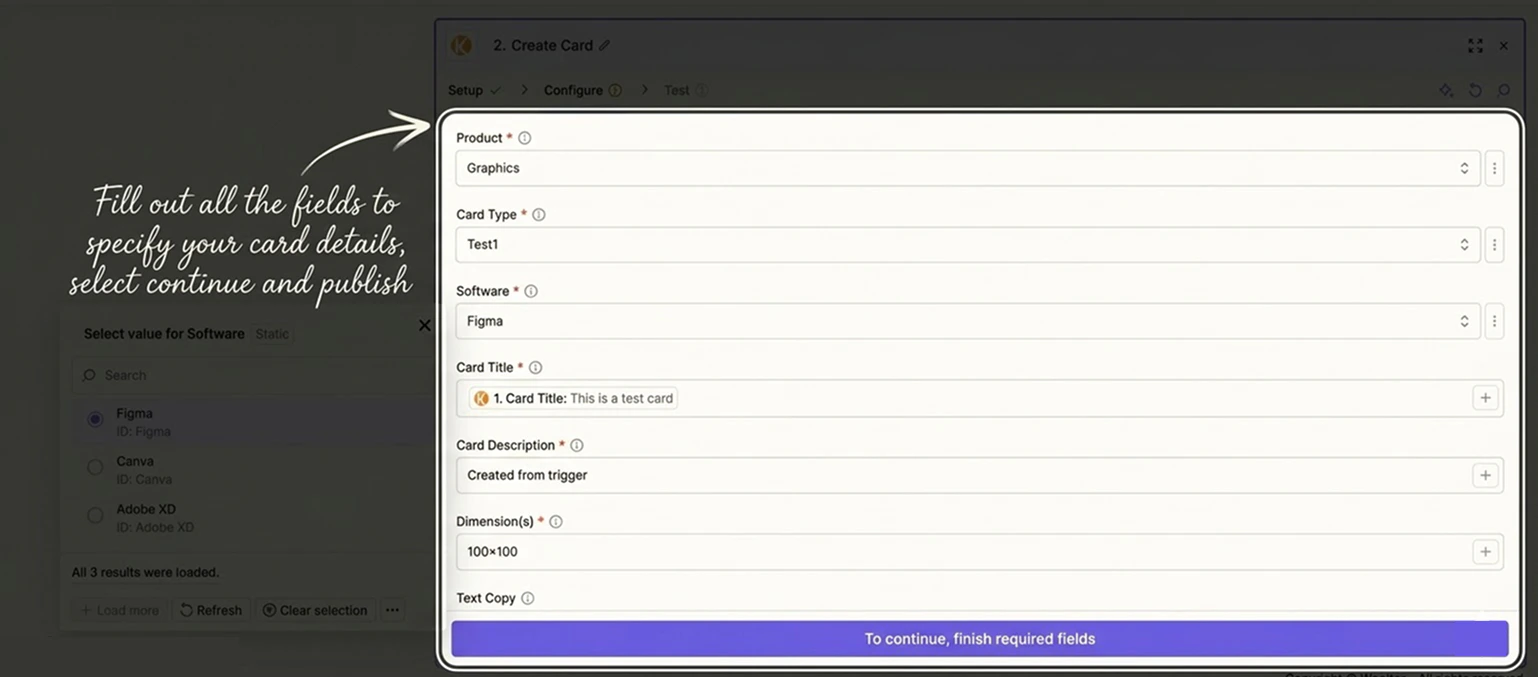
- Use Insert Data in Zapier to pull values from your trigger into KIMP360 fields (for example, a form question into the description).
- Fill in as much detail as possible to avoid back‑and‑forth with your KIMP360 team.
- Test the Zap after configuring the action to confirm a new task appears in the correct board with the expected data.