
/delete_brand command opens a modal where you:
- Search for and select the brand to delete
- Confirm that you really want to delete it
Prerequisites
- You understand that deleting a brand is a destructive action and may affect existing tasks linked to that brand
How to delete a brand from Slack
1
Run the /delete_brand command
In a channel where the KIMP360 Slack app is installed, type
/delete_brand and press Enter.2
Select the brand to delete
A modal titled Delete Brand opens.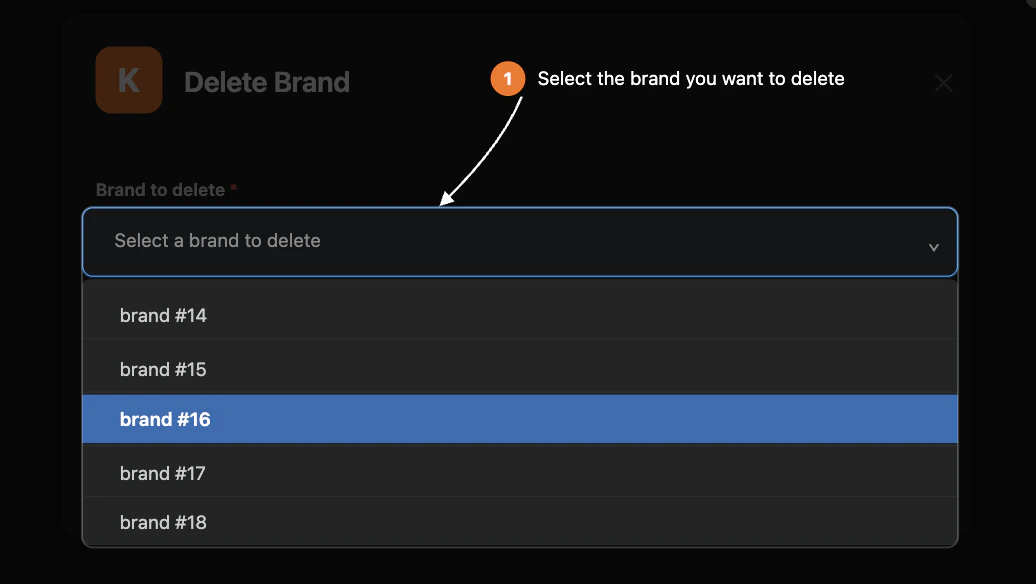
- In the Brand to delete field, start typing to search for the brand you want to remove.
- The dropdown uses an external select backed by your KIMP360 account, so you can quickly find the right brand.
3
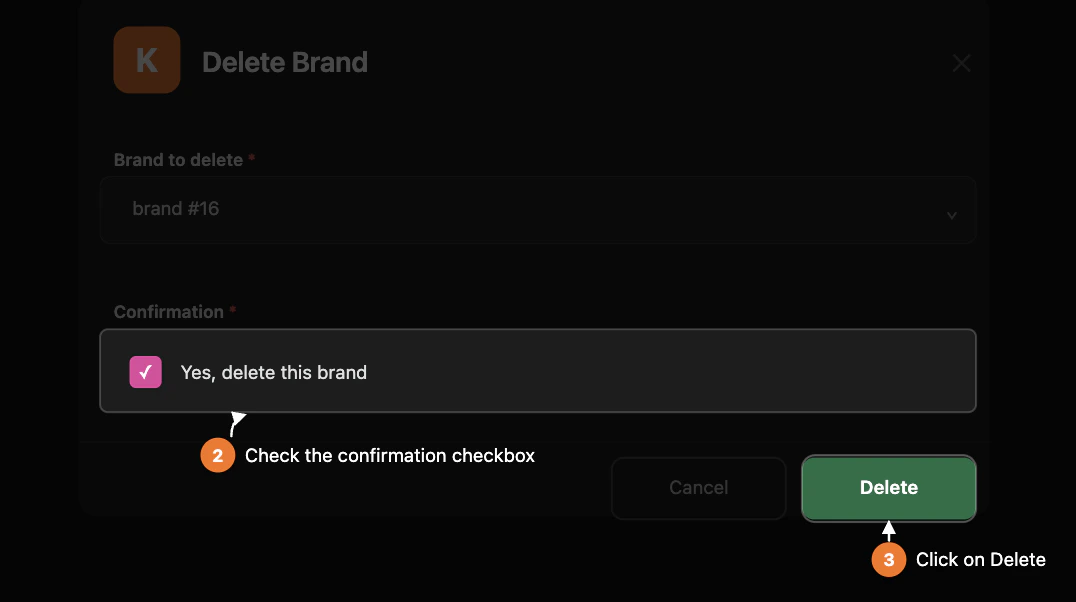
Confirm the deletion
To prevent accidental deletions, the modal includes a confirmation
checkbox.
- Check Yes, delete this brand to confirm.
-
If you try to submit without checking this box, you will see a
validation error.
4
Submit and review the result
Click Delete.
- The modal briefly shows a “Deleting Brand” state while KIMP360 processes the request.
- If the deletion succeeds, the modal updates with a success message, and a confirmation message is posted in the channel with the brand name.
- If the deletion fails (for example, due to API or permission issues), the modal is updated with an error message, and you also receive an ephemeral error message in Slack.