
/add_task command opens a multi-step modal where you:
- Select the product you need work on (Graphics, Video, Development, etc.)
- Choose the specific request type (for example, Social Media Post, Thumbnail, Landing Page)
- Fill in all the task details KIMP360 needs to get started
How to create a task from Slack
1
Run the /add_task command
Go to any channel where the KIMP360 Slack app is installed and type
/add_task, then press Enter.2
Step 1 – Choose the product
A modal titled Add New Task - Step 1 opens.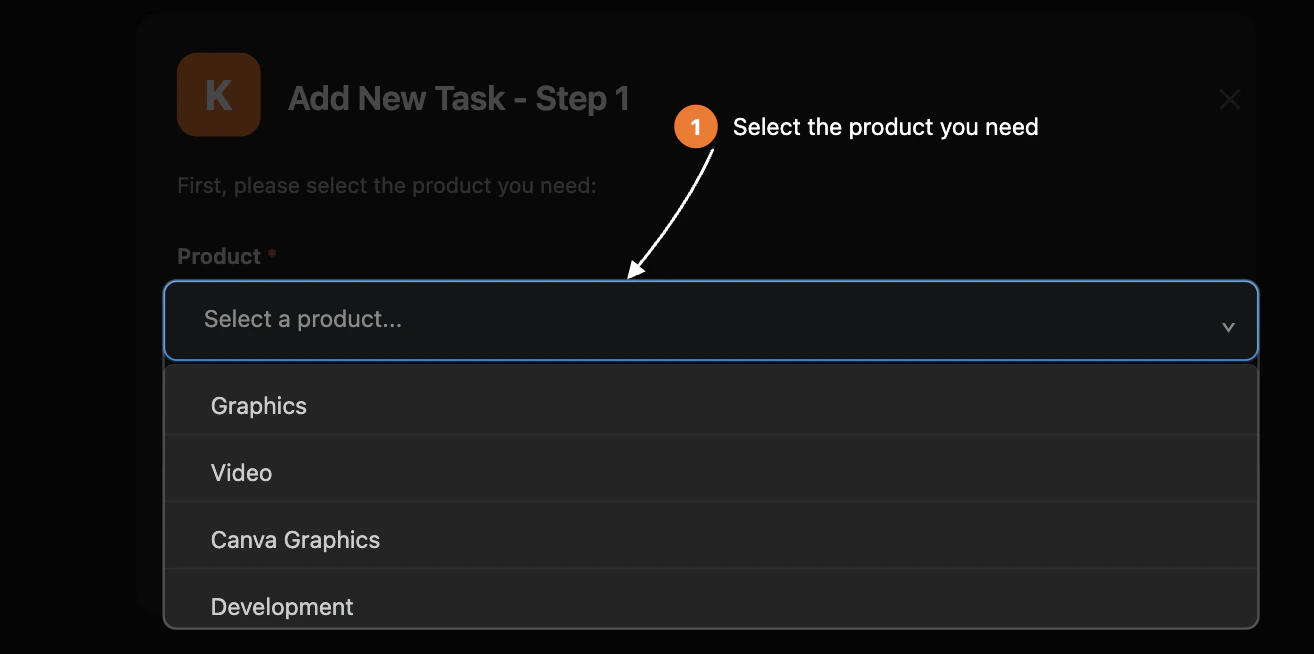
- Use the Product dropdown to select what you need help with (for example, Graphics, Video, Graphics + Video, Canva Graphics, or Development).
- This list is loaded from your KIMP360 account so it always reflects the products available to your project.
3
Step 2 – Choose the request type
After selecting a product, the modal updates to Add New Task - Step 2.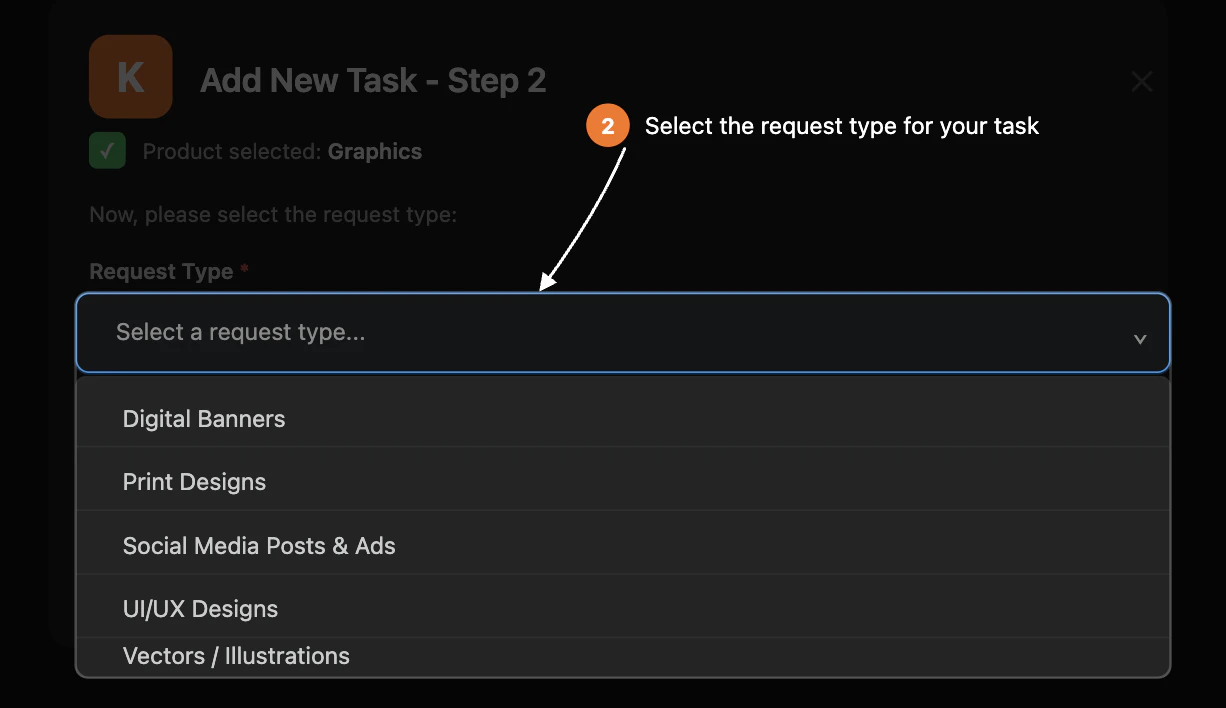
- Use the Request Type (or card type) dropdown to pick the kind of work you need.
- The list of request types is filtered based on the product you chose in Step 1 (for example, different options for Graphics vs Development).
4
Step 3 – Fill in task details
In the final step, the modal expands to collect all task details. The exact
fields depend on what you selected earlier, but typically include: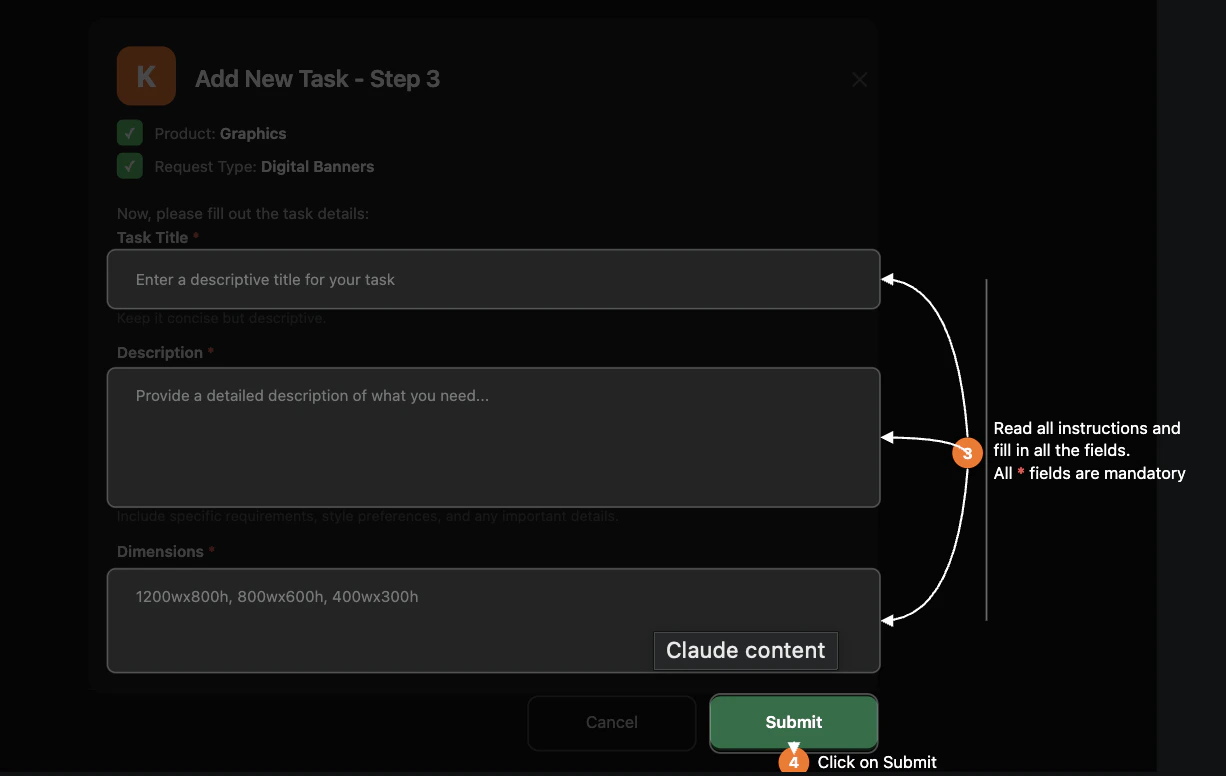
- Title – a clear name for the task
- Description – what you need, goals, and any key requirements
- Brand – select the brand this work belongs to
- Software – choose the tool you prefer (for example, Photoshop, Illustrator, Figma, Canva, or development tools)
- File format – choose the output format (for example, JPG, PNG, PDF, SVG, AI, PSD)
- Links and assets – depending on your workspace
configuration, you can:
- Attach design links from existing KIMP360 tasks, or
- Provide your own external design link
5
Submit the task and confirm
When you are done, click Submit.
- If everything is valid, the task is created in KIMP360 using your linked project and API key.
- You will see a confirmation message in Slack that includes basic information about the new task.
- If something goes wrong (for example, missing permissions or an API error), you will see an error message in Slack explaining that the task could not be created. In that case, try again or contact support.