
/add_tag command opens a modal where you:
- Provide a tag name
- Optionally set a background color
- Optionally mark the tag as a default
How to create a tag from Slack
1
Run the /add_tag command
In a channel where the KIMP360 Slack app is installed, type
/add_tag and press Enter.2
Fill in tag details
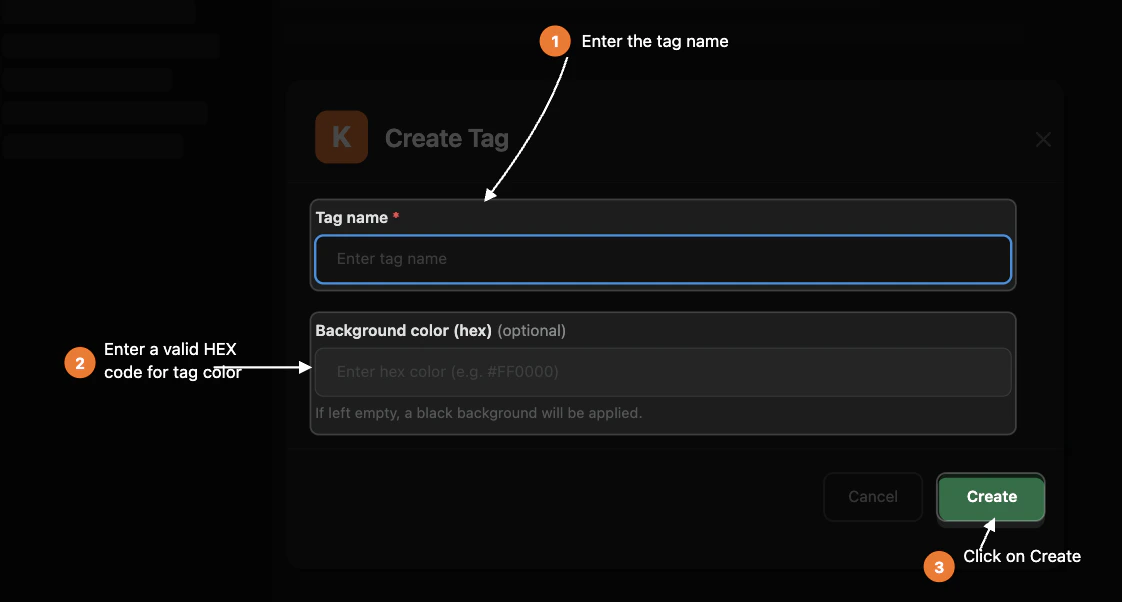
A modal titled Create Tag opens.It contains the following fields:
- Tag name (required) – the human-friendly name of the tag
- Background color (hex) (optional) – a color code like
#FF0000
- If you leave the background color empty, KIMP360 applies a default (black) background color.
-
If you try to submit without a tag name, the modal will show an inline
error.
3
Create the tag
Click Create.
- KIMP360 creates the tag in the project linked to your Slack workspace using the name and color you provided.
- A success message is posted in the channel showing the new tag name and ID.
- If something goes wrong (for example, API issues or missing permissions), you receive an ephemeral error message instead, so you can try again or contact support.