
/archive_task command opens a modal where you:
- Search for a task that is eligible to be archived
- Confirm that you really want to archive it
Prerequisites
- The task you want to archive is in a status that allows archiving ( you can not archive tasks that are in Requests, in Progress, or in Review )
How to archive a task from Slack
1
Run the /archive_task command
Go to a channel where the KIMP360 Slack app is installed and type
/archive_task, then press Enter.2
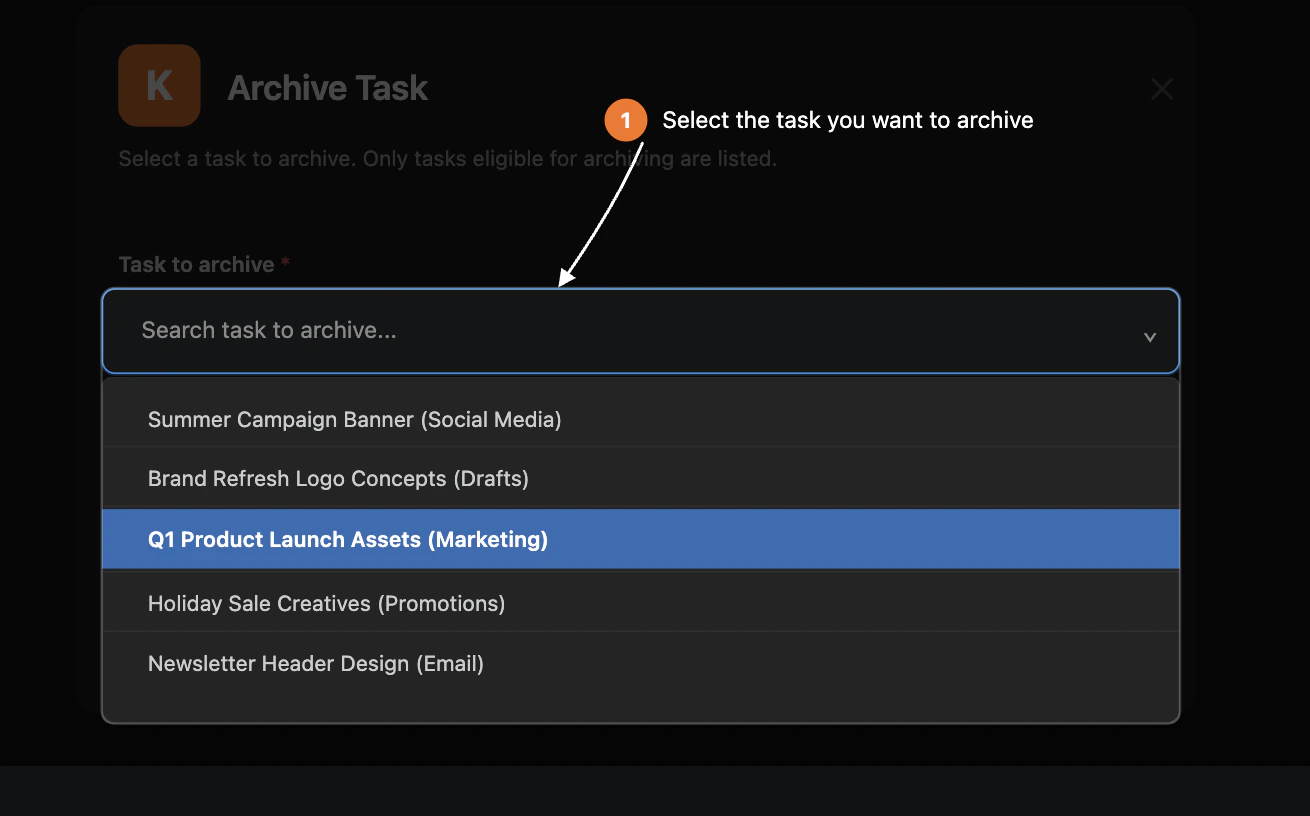
Select a task to archive
A modal titled Archive Task opens.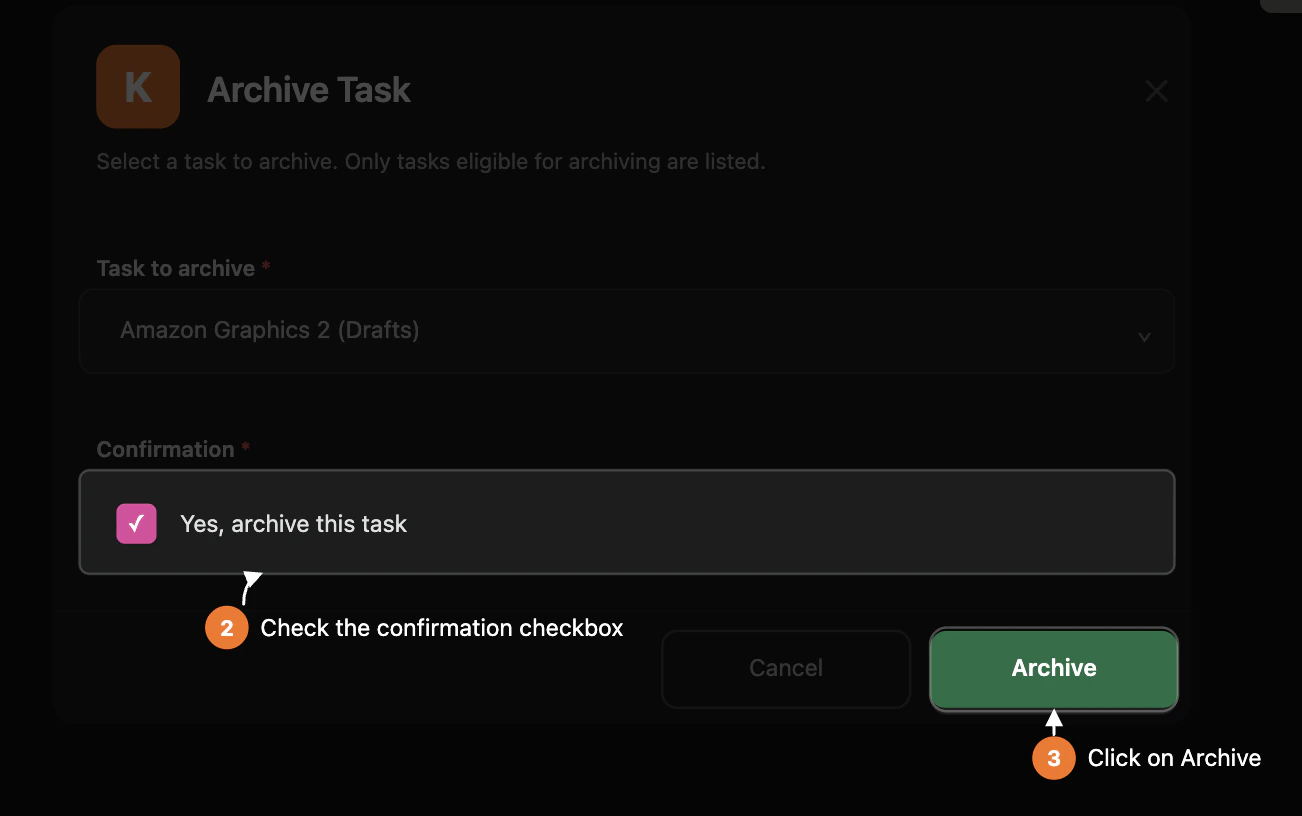
- In the Task to archive field, start typing the name or status of the task.
- The dropdown uses an external search powered by your KIMP360 account and only shows tasks that are currently eligible for archiving.
3
Confirm the archive action
To avoid accidental changes, the modal includes a confirmation checkbox.
- Check Yes, archive this task to confirm you really want to archive the selected task.
-
If you try to submit without checking this box, the modal will show a
validation error.
4
Submit and wait for completion
Click Archive.
- The modal briefly shows a status like “Archiving the selected task, please wait…” while KIMP360 processes the request.
- If the archive is successful, the modal updates to confirm that the task was archived.
- A confirmation message is also posted in the channel so your team can see that the task has been archived.
- If something goes wrong (for example, API issues or permission problems), you will see an error message in the modal and an ephemeral message explaining that the archive failed.